

Everything you need to know about running your repair shop.
Customers, vehicles, work orders, the Repair Report and getting paid — from the first booking to the last invoice.
This is the Automotive side of jobcount. You will recognise it by the eagle in the browser tab.
Here a business is a shop. A shop has customers, their vehicles, and work orders. A work order is one visit by one car. Inside it are jobs, and inside each job are the labor lines and the parts. The customer approves the work, you do it, they pay, and they get a Repair Report PDF.
Read this page top to bottom the first time. After that, jump straight to the part you need.
1What can I do?
An admin switches a role on for your account. Then the shop owner adds you to the shop, or the shop links you as a customer. Together those decide what you see.
There is no separate "viewer" role. The closest thing is a customer, who can look at their own cars and bills but change nothing.
Shop owner
- [object Object]
- [object Object]
- [object Object]
- [object Object]
- [object Object]
- [object Object]
- [object Object]
- [object Object]
Mechanic
- [object Object]
- [object Object]
- [object Object]
- [object Object]
- [object Object]
- [object Object]
- [object Object]
- [object Object]
Customer
- [object Object]
- [object Object]
- [object Object]
- [object Object]
- [object Object]
- [object Object]
- [object Object]
2How do I do the main things?
These are the things a shop does every day, in the order they happen. Each step shows the real screen. The numbered badges on the picture match the numbered notes under it.
1. Find your way around
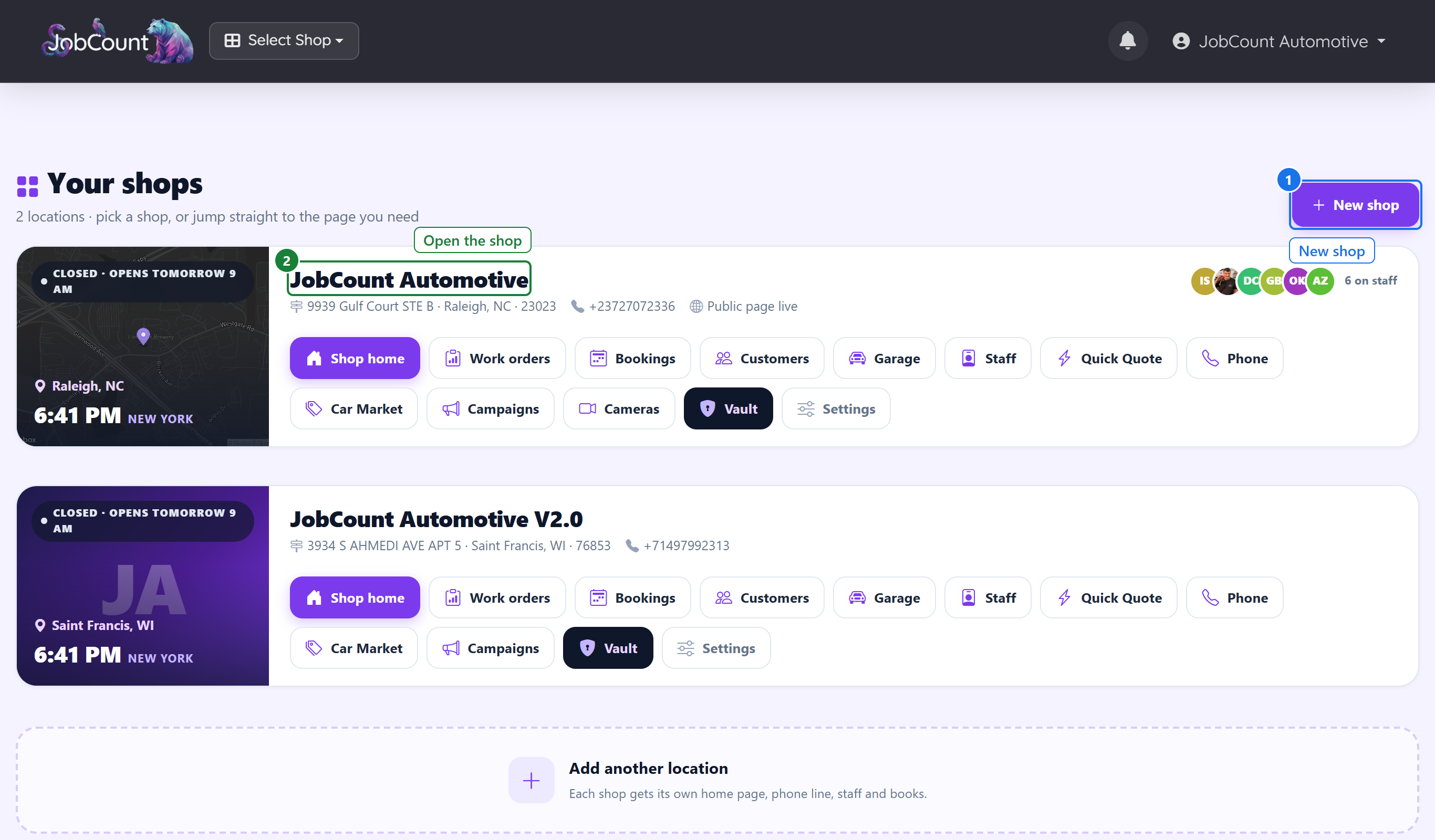
When you sign in as the owner you land on your shops. Open one and you are at its home page, which is a map of everything.
1.1 Your shops
One card per shop, with an open or closed clock. Most owners have one shop. Click its name to go in.
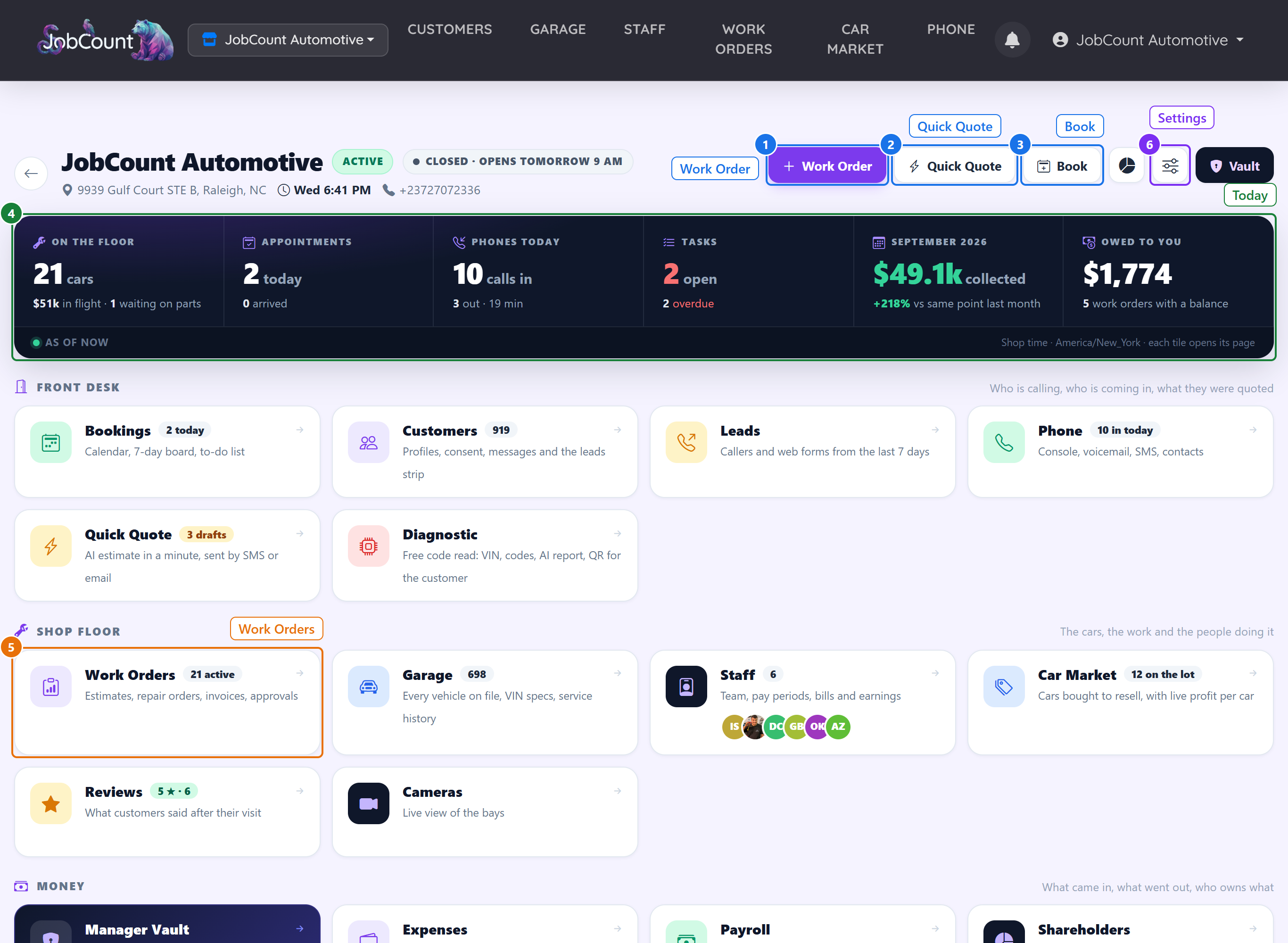
1.2 The shop home page
Three things live here: quick buttons at the top, today's numbers in the strip, and the doors below grouped by what they are for. Front desk, Shop floor, Money, Getting found and Setup.
2. Add a customer and their vehicle
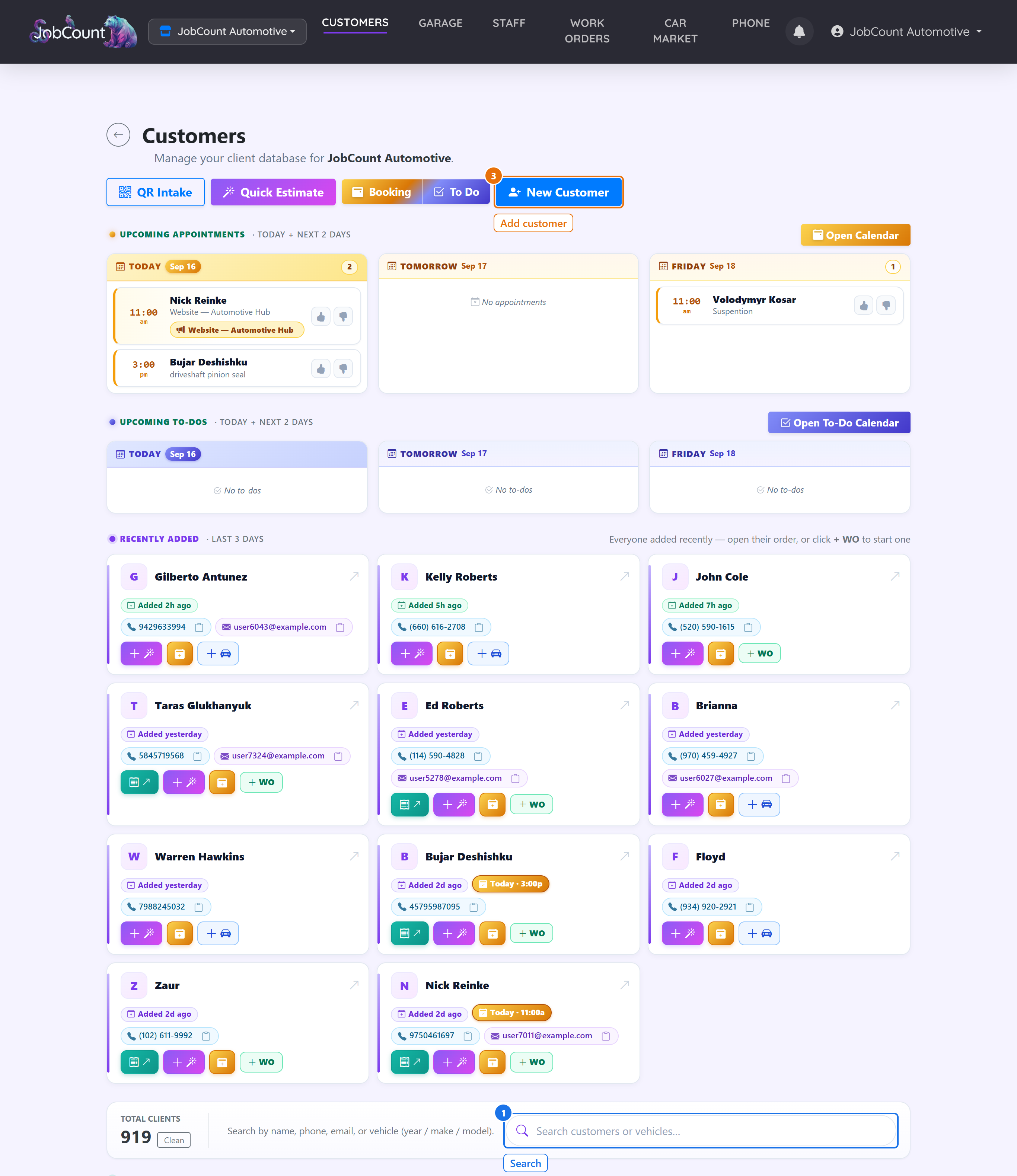
Every work order needs a customer and a vehicle. Add them here first, or add them on the spot when you open the work order.
2.1 The Customers page
Search by name or phone at the top. New enquiries arrive in the Leads strip. Each customer card opens their vehicles and history.
3. Open a work order
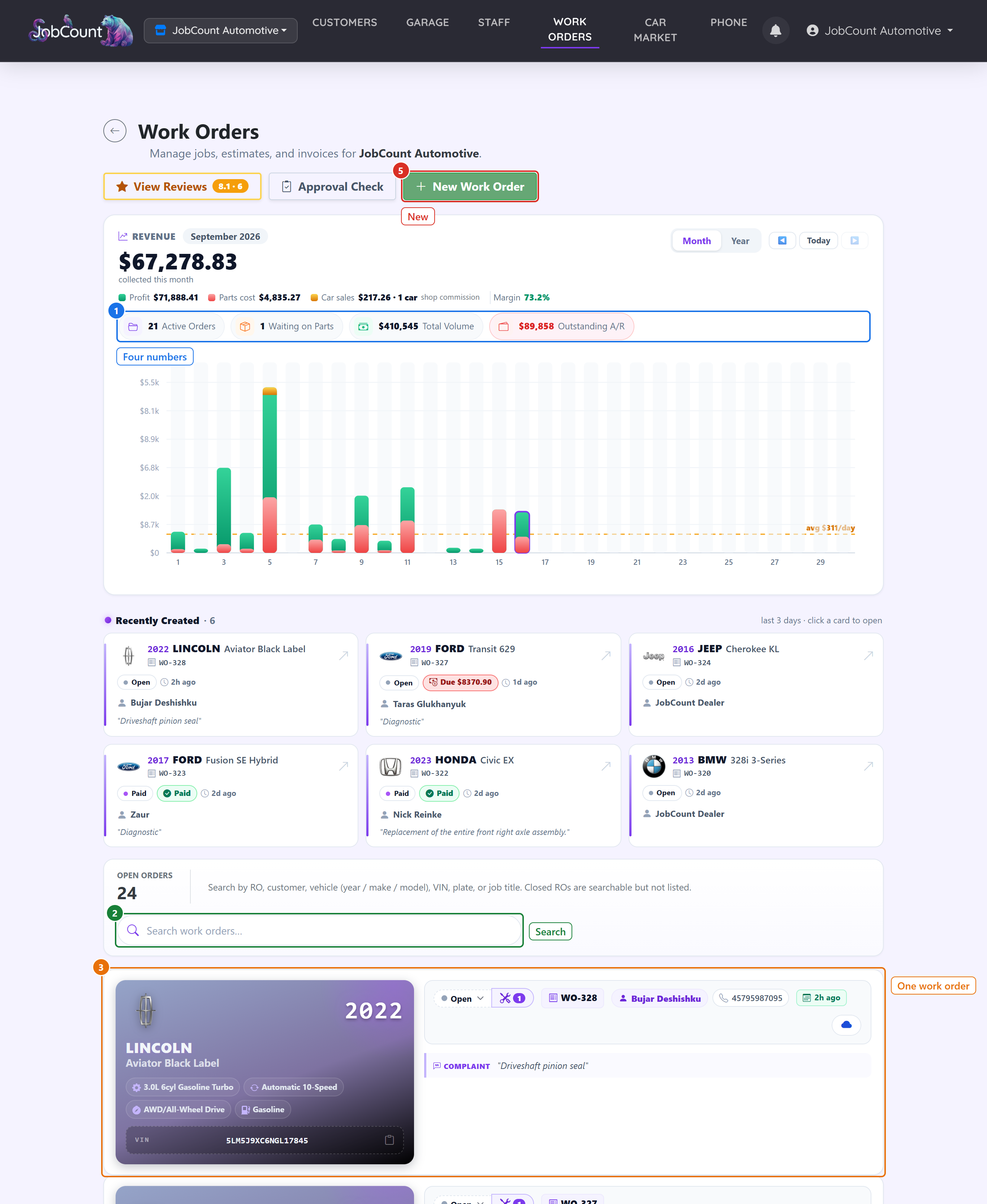
A work order is one visit by one car. It gets a number like WO-42 by itself. It starts as Open and moves through the shop until it is Paid.
3.1 The Work Orders page
The four boxes at the top are the pulse of the shop. Below them is one card per work order with its status as a pill you can change on the spot. Closed work orders are hidden by default.
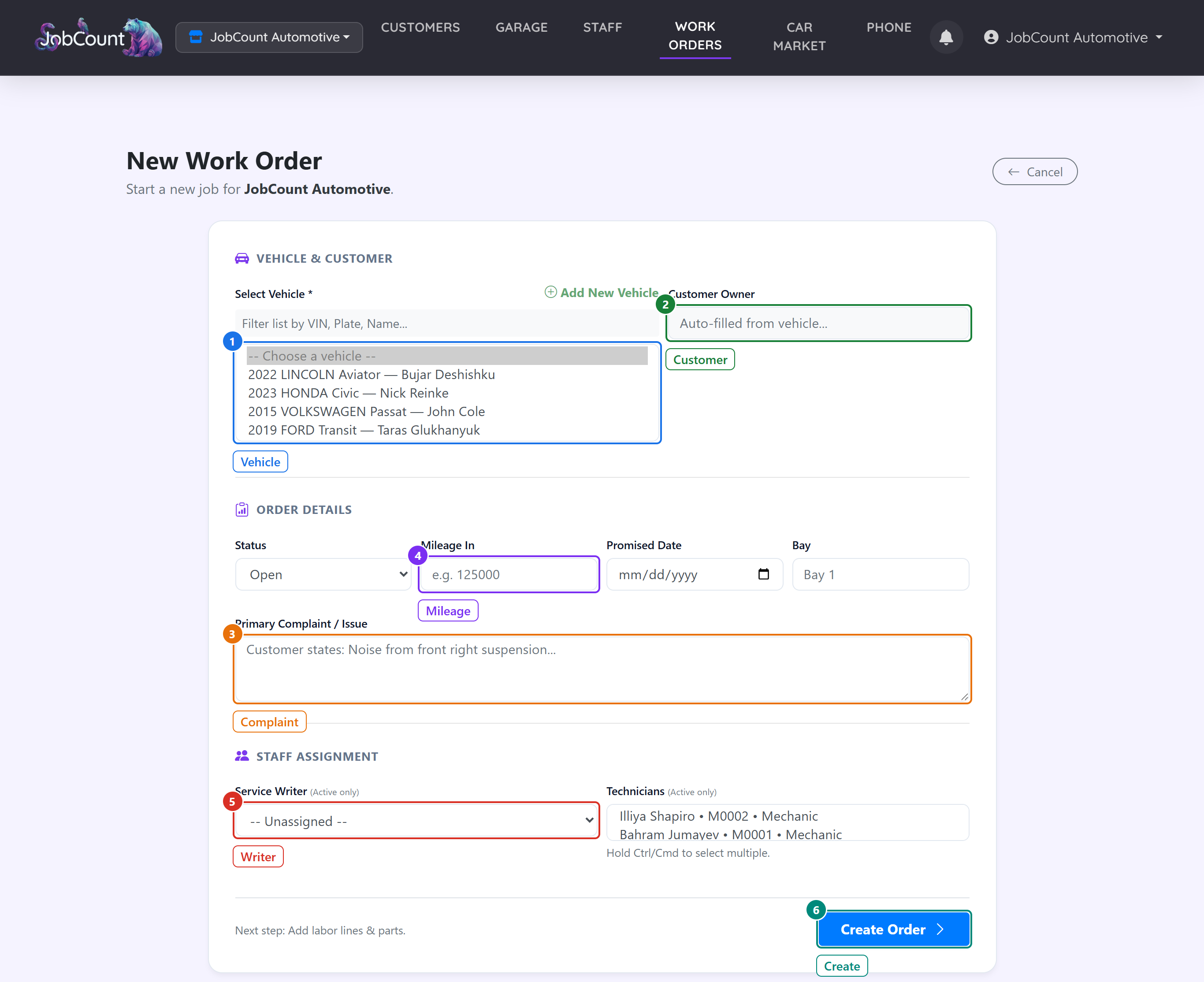
3.2 The new work order form
Pick the vehicle first and the customer fills itself in. Write down what the customer is complaining about. The rest can wait.
4. Build the repair plan
Inside the work order you add jobs. A job is one thing you are fixing. Each job has labor lines, which carry hours, and parts, which carry a cost and a price.
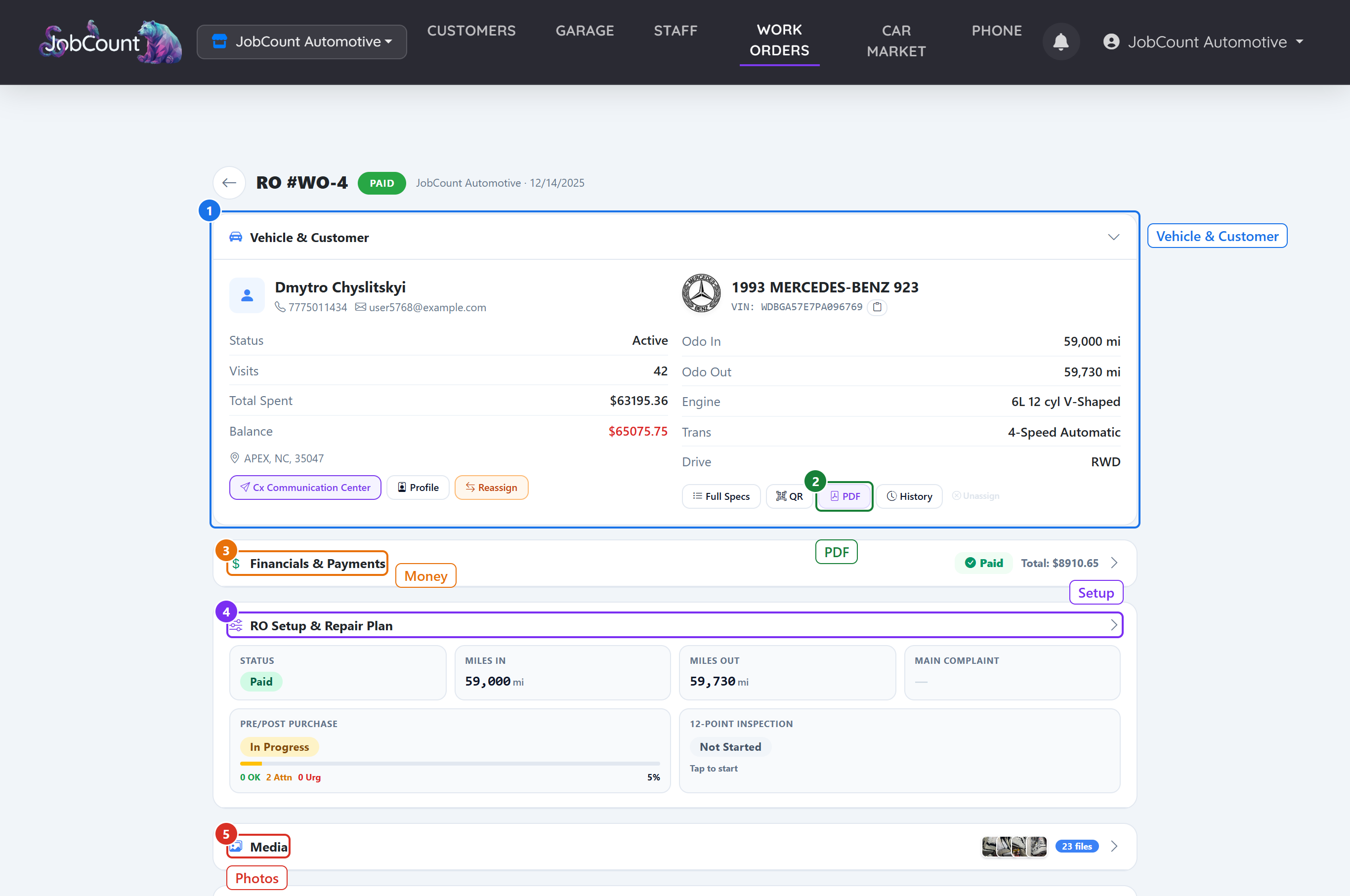
4.1 The work order page
Everything about one visit is on this page, in sections you open and close. The vehicle and customer at the top, the money, the jobs, the photos, the parts.
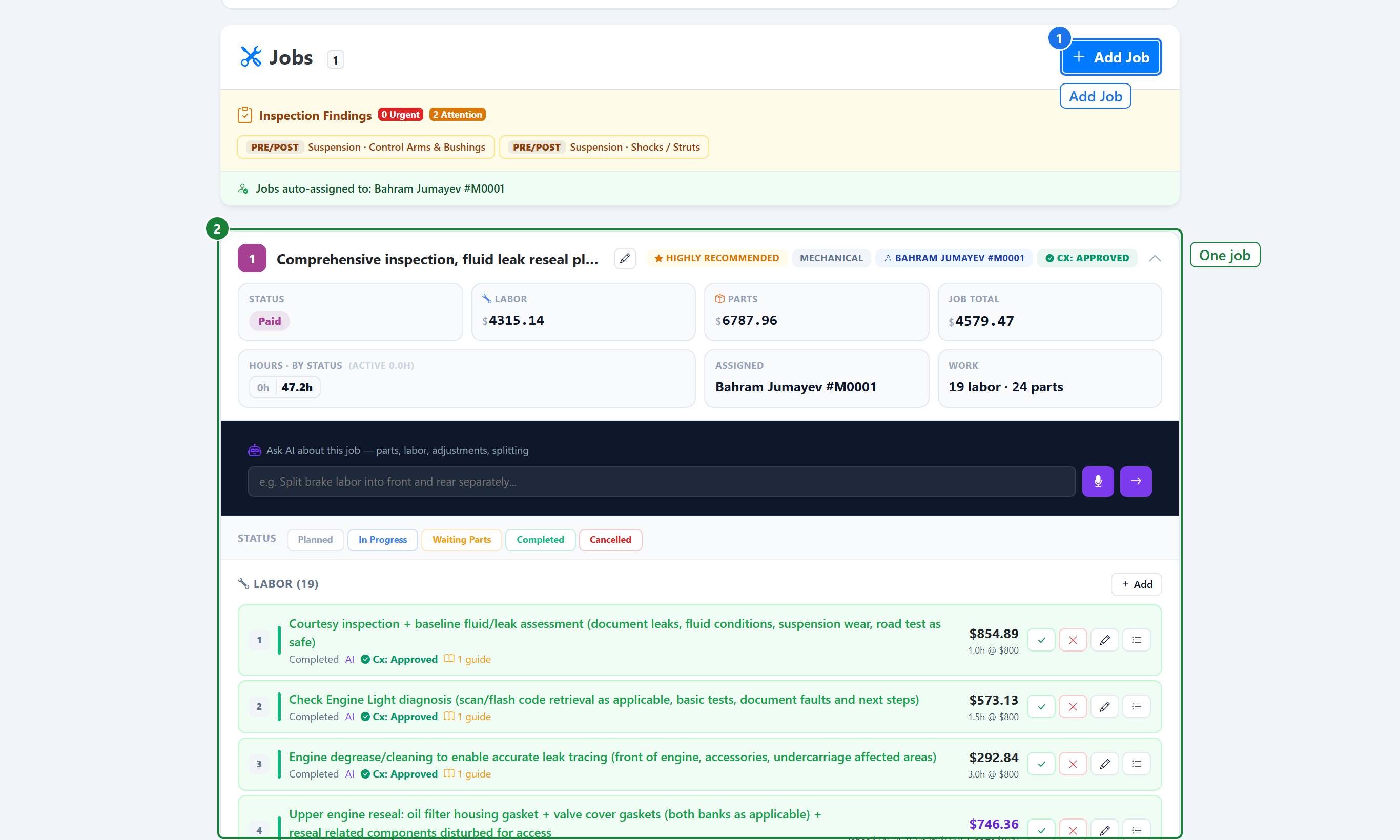
4.2 The Jobs section
Scroll down to Jobs. Each job shows its money and hours at the top and its labor lines and parts under it. Add Job starts the next one.
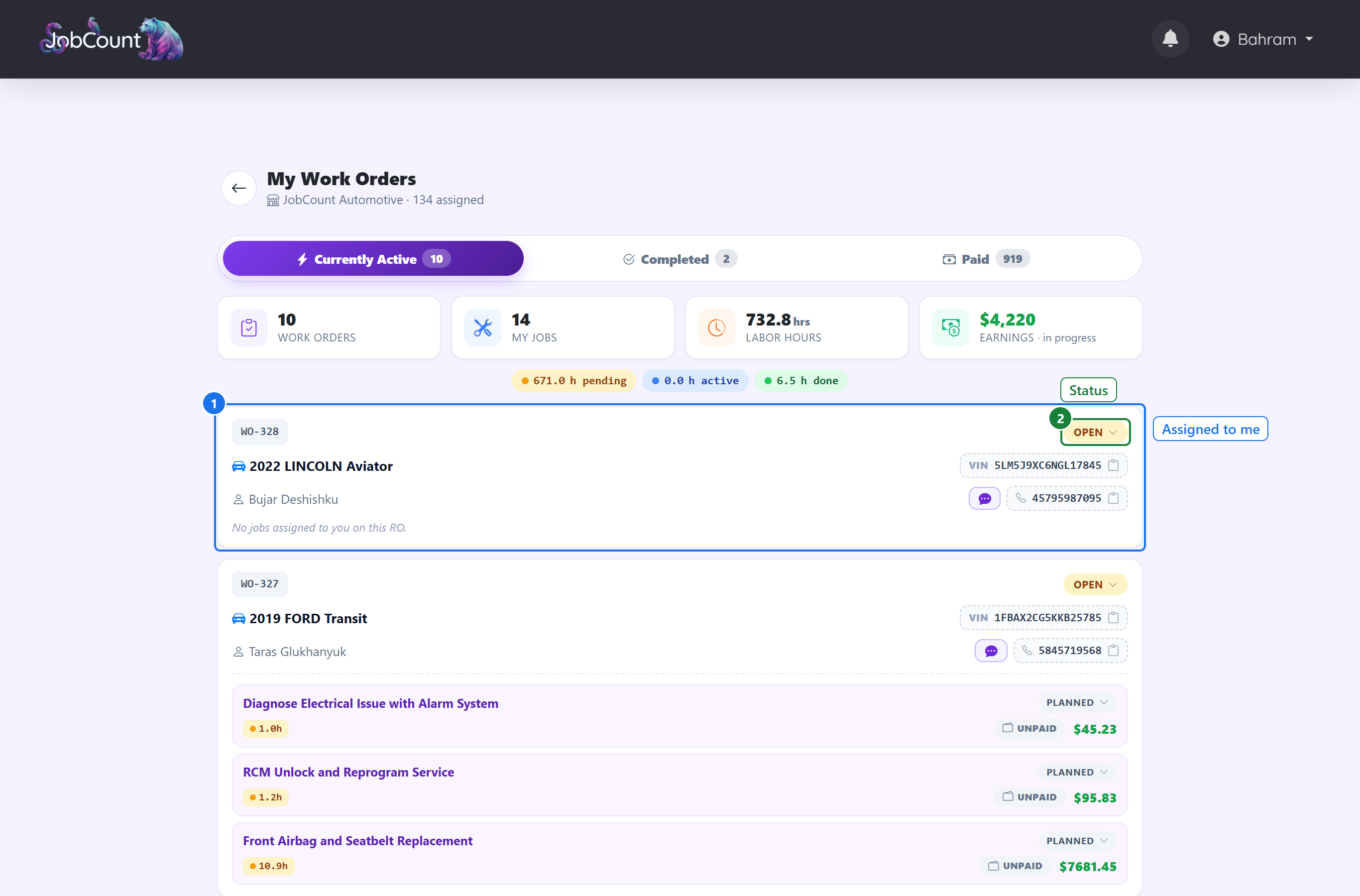
4.3 What your mechanic sees
A mechanic signs in to their own list. It only shows the work orders assigned to them. They add labor, parts and photos from here, on a phone if they like.
5. Get approval, take payment, close the books
Send the quote, let the customer approve each line, do the work, take the money. When the work order is Paid and every job is done, press Manager Approve to lock it.
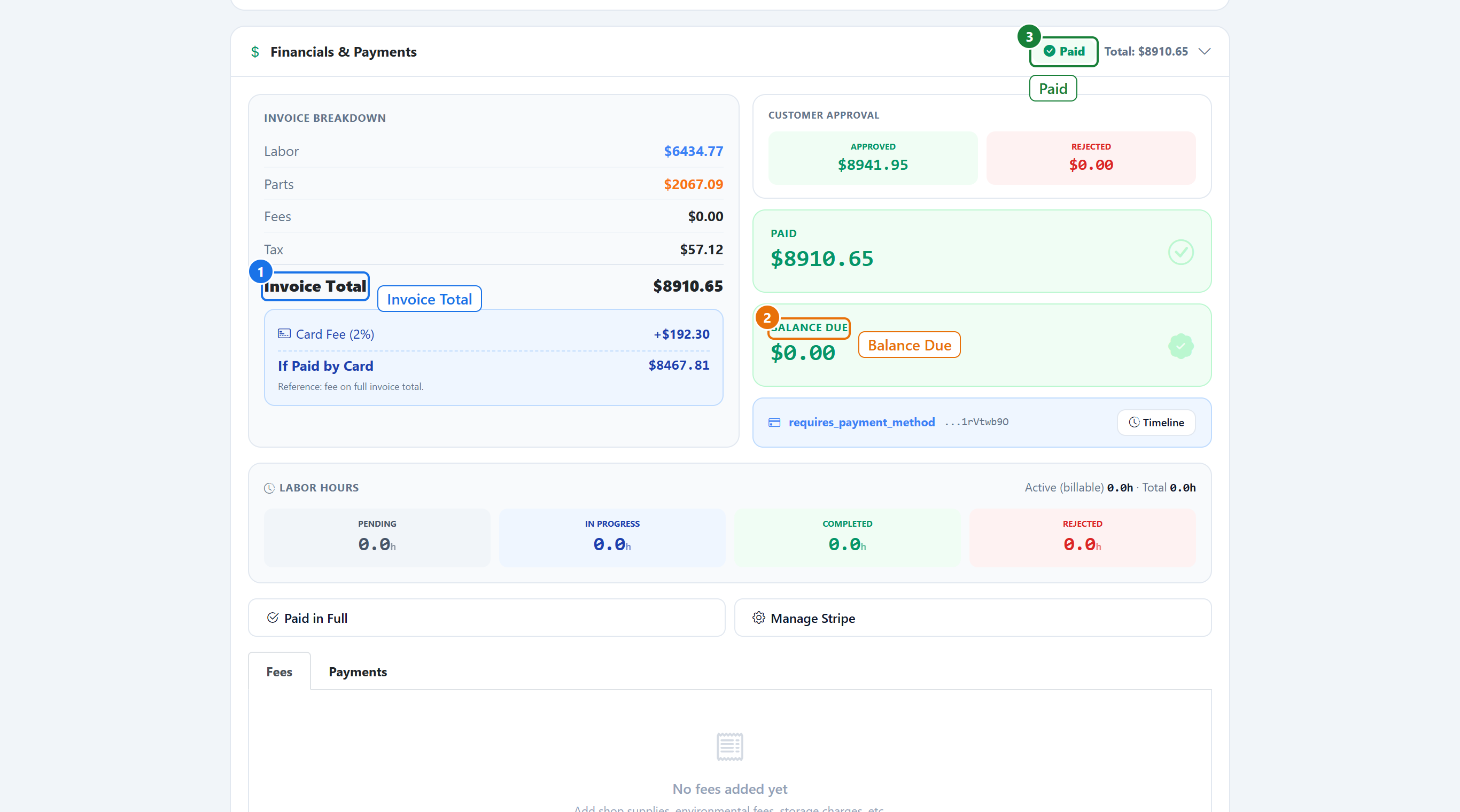
5.1 The Financials & Payments section
Open the Financials section on the work order. It shows labor, parts, fees, tax and the total, what has been paid, and the balance. If a card is used, the card fee is added on top and shown separately.
6. Look after your staff
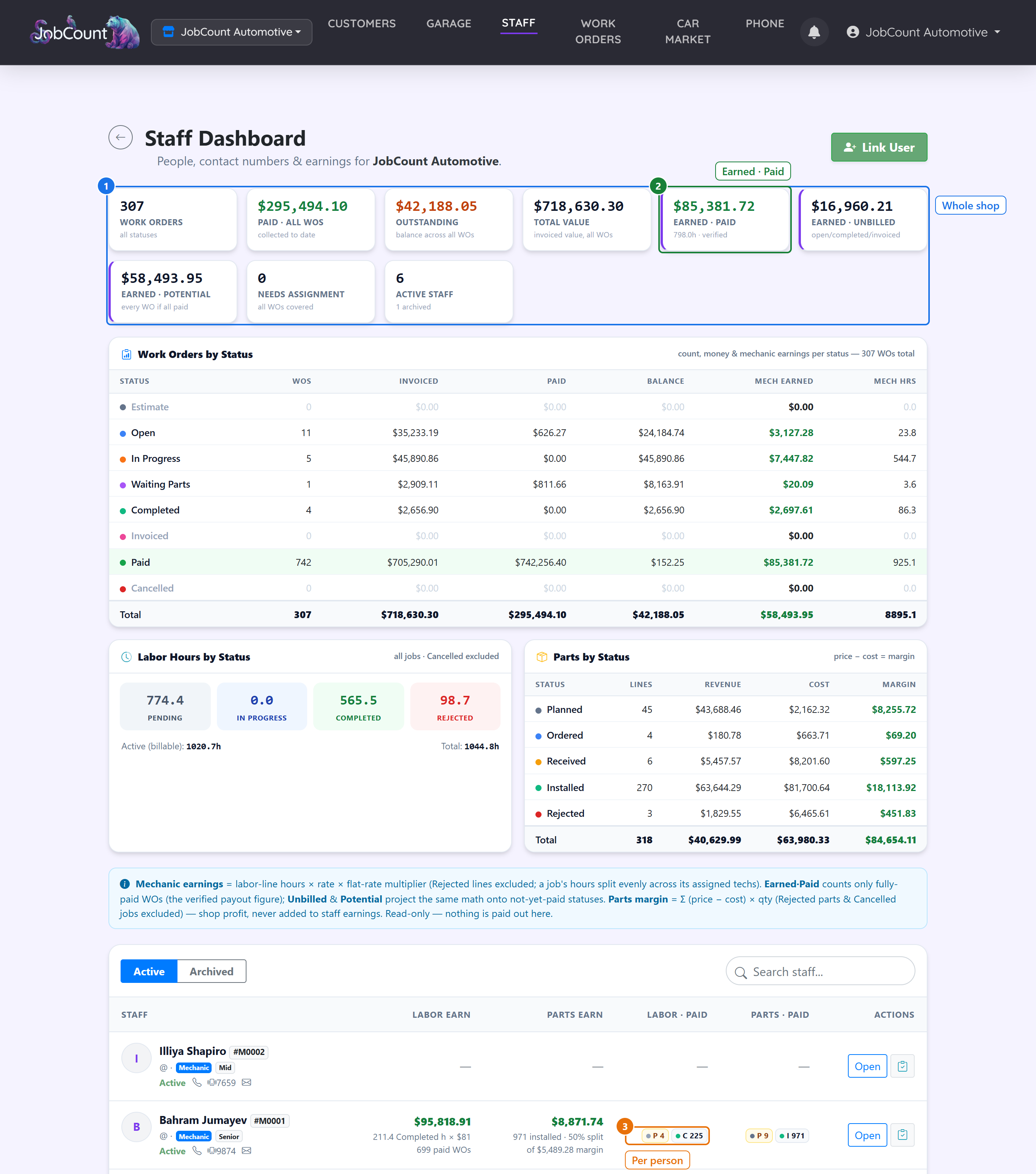
Add people by username, set how they are paid, and see what each of them has earned. Nothing is paid out from this page. It is a mirror of the work.
6.1 The Staff page
The strip at the top sums the whole shop. Below it, one card per person with their earned, paid and unpaid figures, and a button to build their bill.
7. Keep the calendar
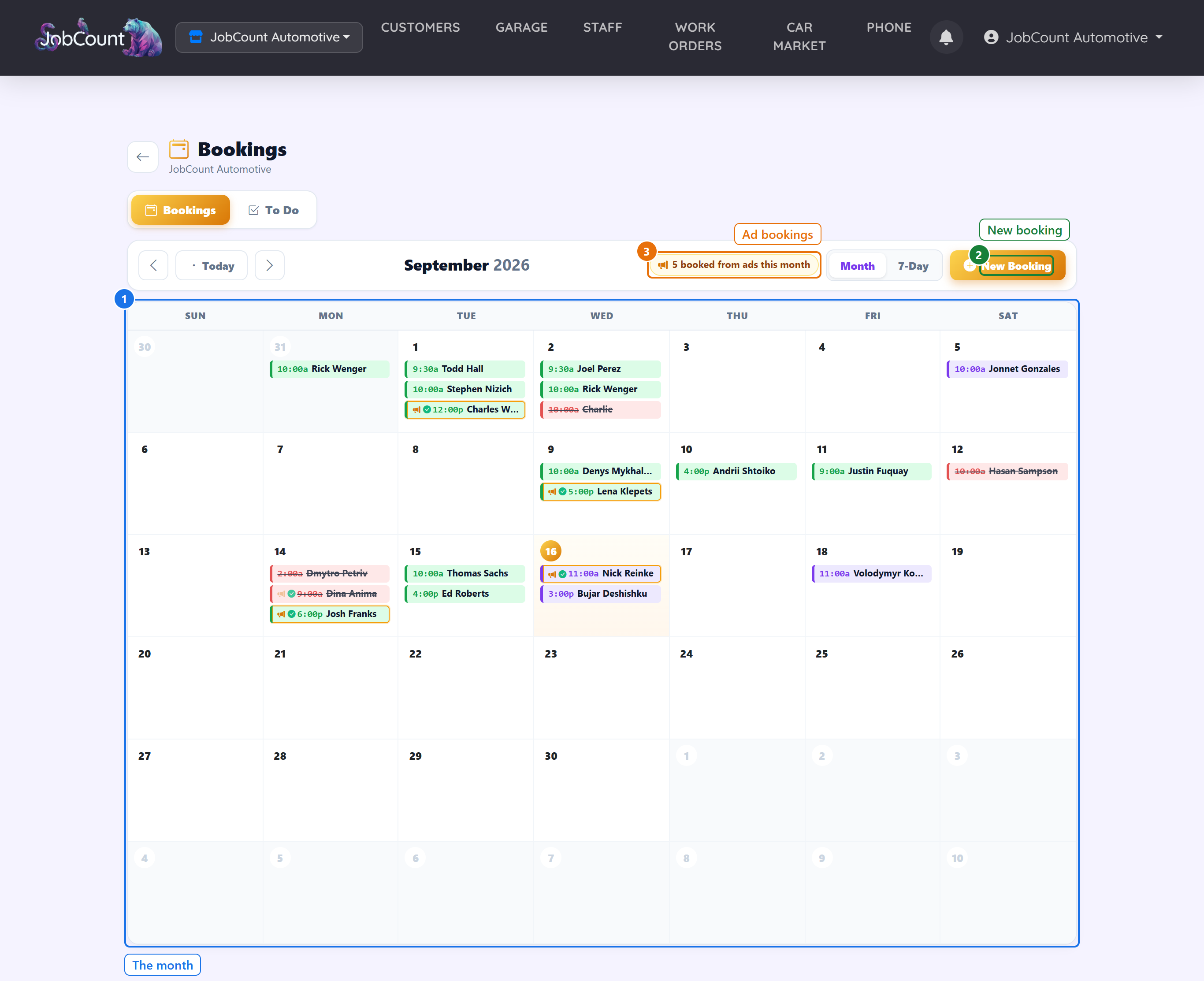
Bookings are appointments. Customers can book from their garage, the front desk books on the phone, and ad campaigns book too. They all land here.
7.1 The Bookings calendar
Each booking is a colored block. The color is its status. Click a day to add one, click a booking to change it or link it to a work order.
3Where do I get my report?
The Repair Report is a PDF for one work order. It has a cover with the car and a money page with every total and every payment. Then comes a chapter for each job with what was found and what was done, the inspection results, and the photos. It is what the customer keeps.
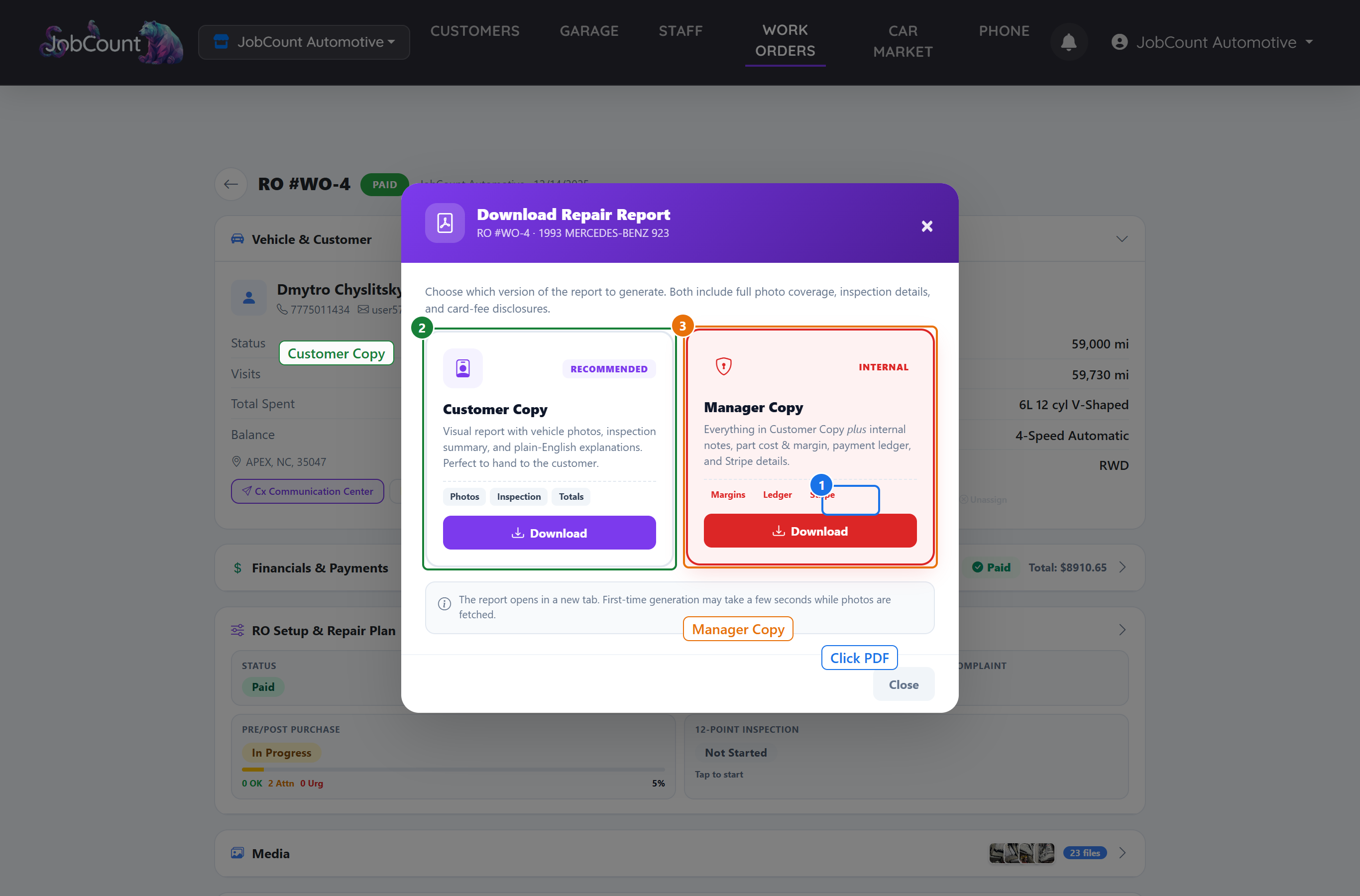
It comes in two copies. The customer copy is what you send out. The manager copy adds your cost, margin and payment provider details, and is for your eyes only.
RepairReport-<work order number>-<vehicle>-CUSTOMER.pdf (or -MANAGER.pdf)
1 Make the report from the work order
On the work order page, click the PDF chip next to the vehicle. Pick Customer Copy or Manager Copy. The file downloads straight away.
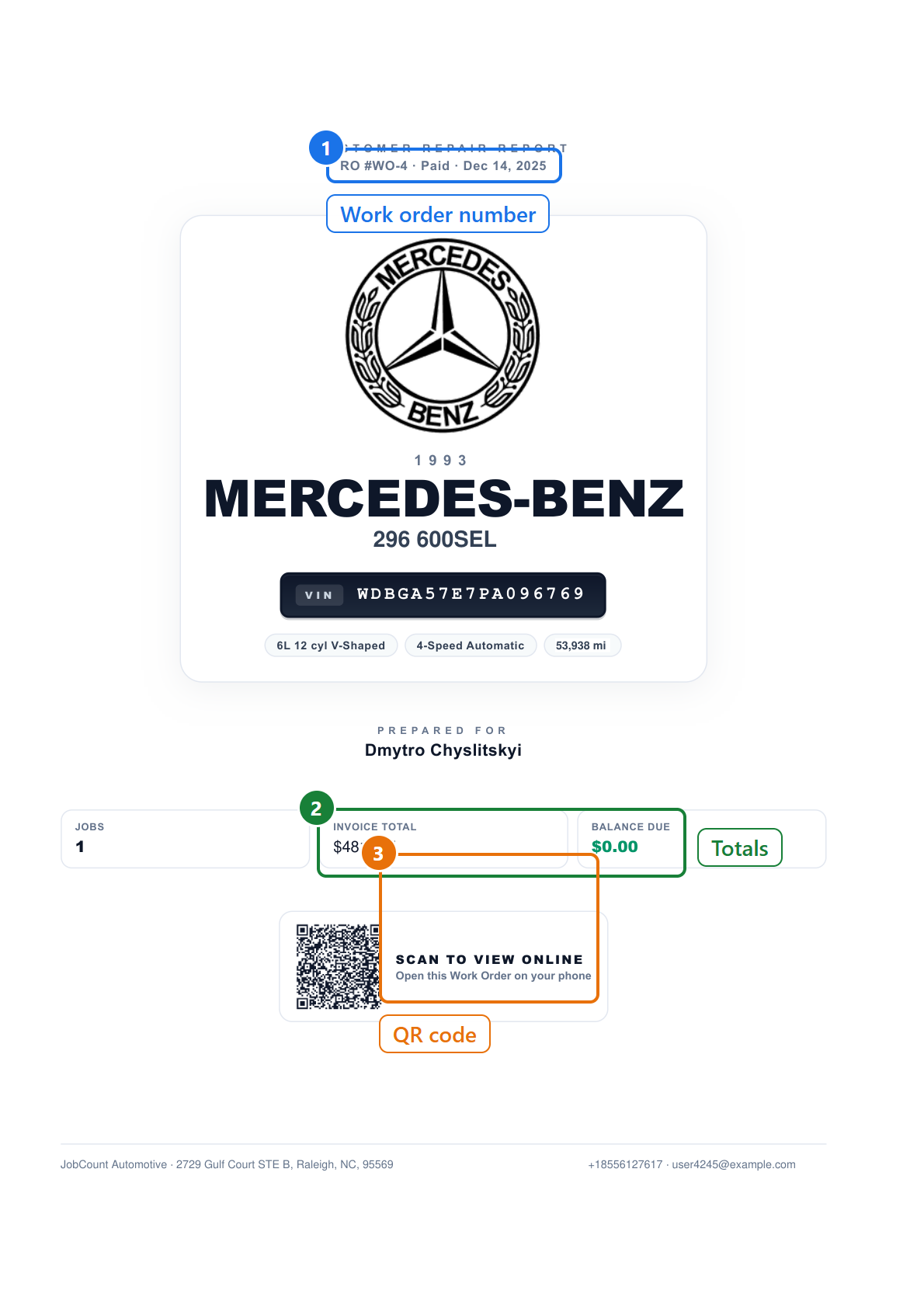
2 The cover page
The first page names the car, the work order number and its status, and carries a QR code. The customer scans it to open the same work order on their phone.
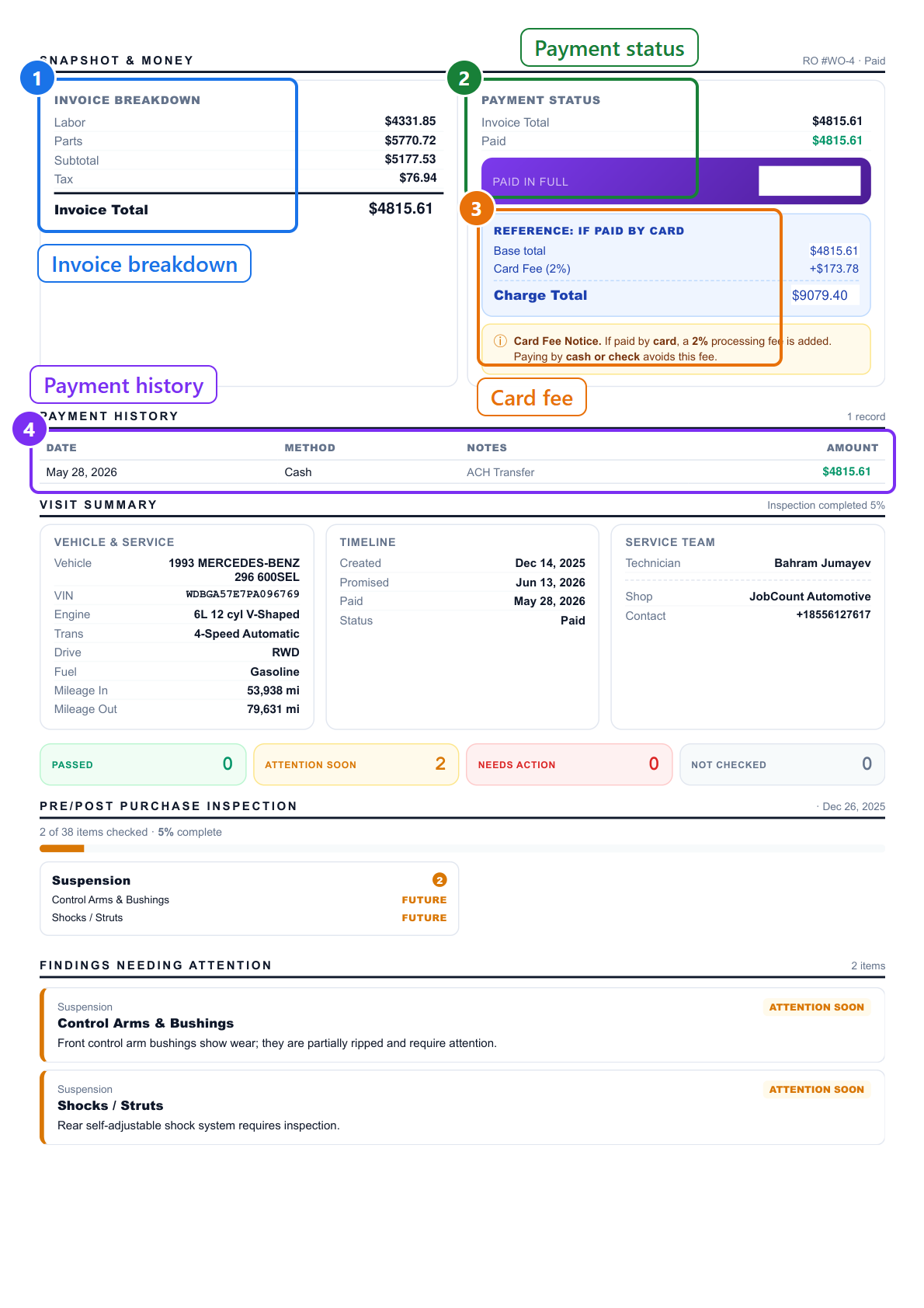
3 The money page
One page with every total, what was paid and how, and the balance. Read it with the glossary below if any line is unclear.
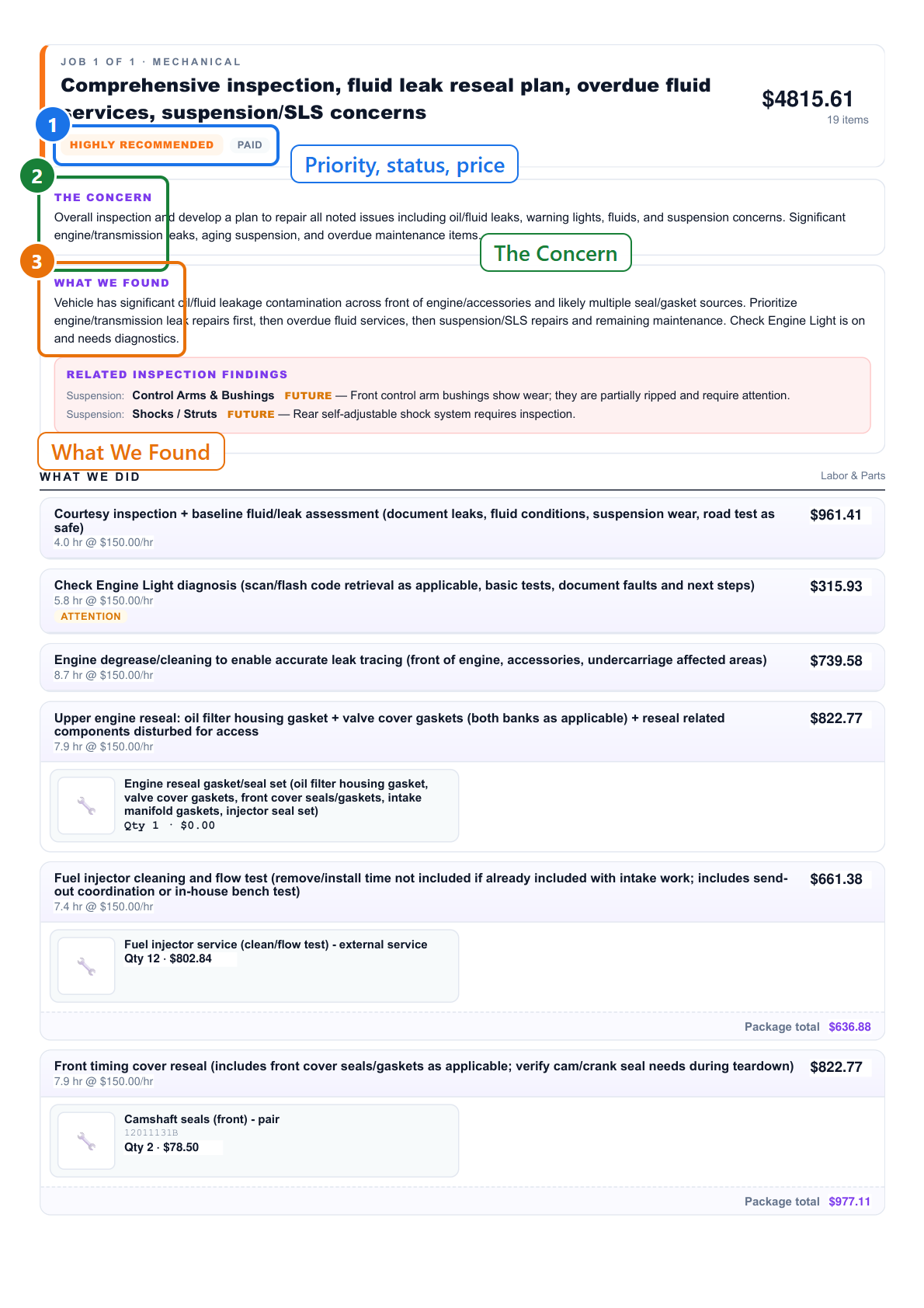
4 A job chapter
One chapter per job. It starts with the story: the concern, what the mechanic found, and why it matters.
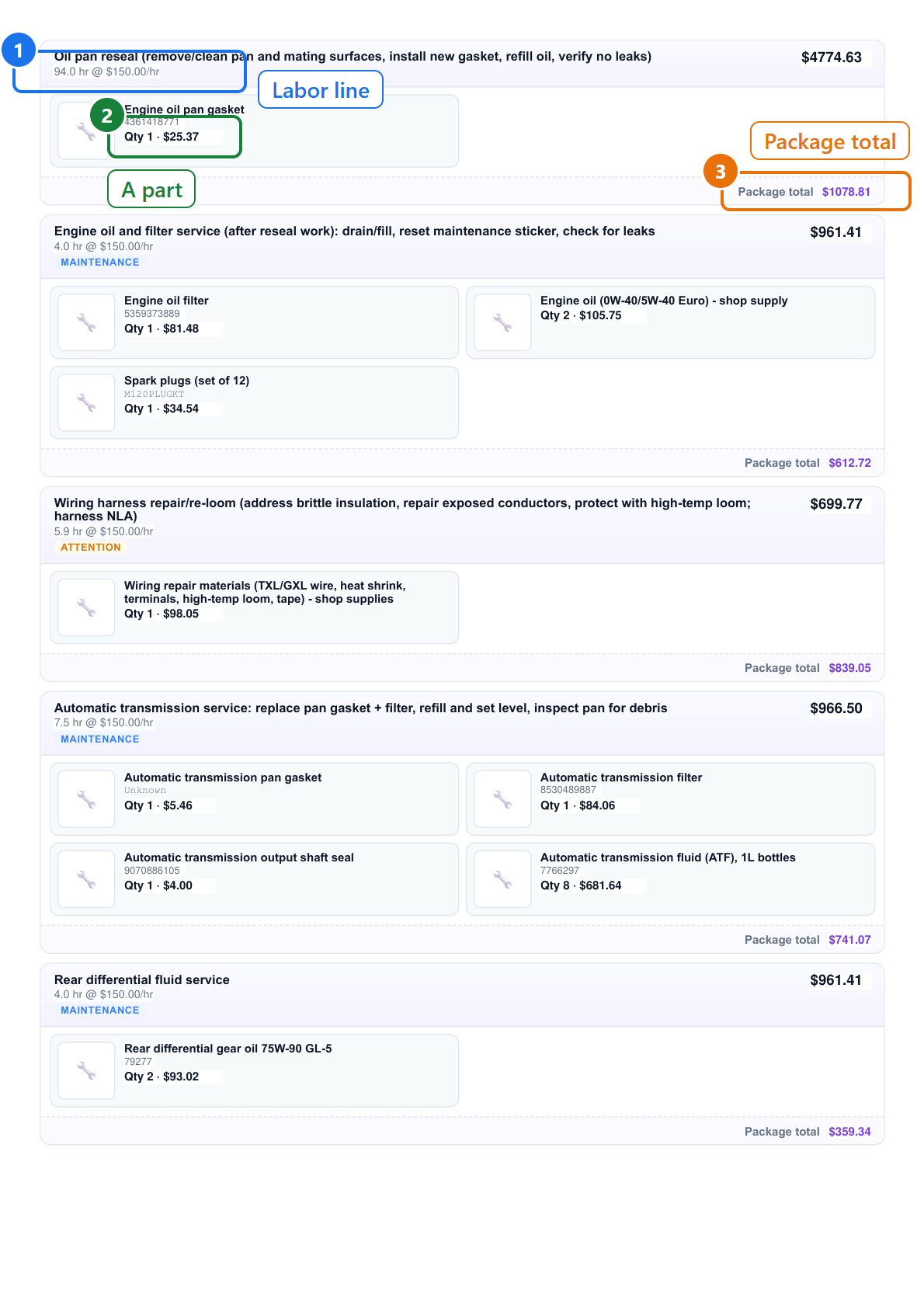
5 The labor and parts
Then comes the work itself. Each labor line carries its hours and rate, and under it the parts that went with it. Rejected lines are not printed at all.
4What do the numbers mean?
Every figure you will meet, in the order you meet it. Each entry says what it measures, shows an example, and tells you when to look twice.
One rule explains most of the money: the customer pays labor plus parts plus fees plus tax. Tax is charged on parts only, never on labor. A card fee is added only when the customer pays by card, and it is shown on its own.
Shop home page (today's strip)
Measures How many cars are in the shop right now: work orders that are Open, In Progress, Waiting for Parts or Completed. Estimates do not count, because a quote is not a car.
Example 5 cars, with 2 waiting on parts.
Watch for In flight is the money still owed on those cars.
Measures Bookings for today that were not cancelled, and the time of the next one.
Example 3 today, next at 2:30 PM.
Watch for A booking that was marked Arrived or Completed no longer counts as next.
Measures Money received since the first of the month, after card fees are taken off. The small percentage compares it with the same day last month.
Example $12,400 collected, +8% versus the same point last month.
Watch for Refunds reduce it. Adjustments do not count.
Measures The balance still unpaid on work orders that are Completed, Invoiced or Paid, and how many of them there are.
Example $2,150 across 4 work orders.
Watch for A work order marked Paid with a balance left is worth a look.
Work Orders page
Measures Work orders that are not yet Paid, Cancelled or Invoiced.
Example 7.
Watch for Invoiced is out of this count, because the work is done and only the money is missing.
Measures Work orders whose status is Waiting for Parts.
Example 2.
Watch for These are the cars taking up space.
Measures The invoice total of every work order, all time, added up.
Example $184,000.
Watch for It includes unpaid work. For what came in, look at Collected.
Measures Accounts receivable: the unpaid balance across every work order.
Example $3,200.
Watch for It is red when it is above zero.
Measures Where the visit is. Estimate is a quote only. Open means accepted. Completed means the work is done. Invoiced means the bill went out. Paid means the money is in. Cancelled means it never happened.
Example A car that was diagnosed, approved and fixed reads Paid at the end of the day.
Watch for Paid is the moment staff earnings count. Nothing is earned until the customer has paid.
Money on a work order
Measures Every labor line's amount added up, on every job that is not cancelled. A labor line's amount is its hours times the labor rate.
Example 2.5 hours at $150 an hour is $375.00 of labor.
Watch for A labor line marked Rejected is left out of the money but its hours are still counted in their own bucket.
Measures Every part's quantity times its price, added up. Rejected parts are left out.
Example Four spark plugs at $12 each is $48.00 of parts.
Watch for Price is what the customer pays. Cost is what you paid. The difference is your parts margin, and the customer never sees it.
Measures Extra lines on the work order: environmental fee, shop supplies, storage, or a misc fee.
Example Shop supplies $15.00.
Watch for Fees are never taxed.
Measures The shop's tax rate applied to taxable parts only. Labor and fees are never taxed.
Example At 7%, $48.00 of taxable parts adds $3.36 of tax.
Watch for If tax reads 0 on a work order with parts, check the tax rate in Shop settings.
Measures Labor plus parts plus fees plus tax.
Example $375.00 + $48.00 + $15.00 + $3.36 = $441.36.
Watch for This is what the customer owes before any card fee.
Measures Every payment added up, with refunds taken off. If a card fee was collected it is shown separately, because that part does not pay down the invoice.
Example $441.36 paid, of which $8.83 was the card fee.
Watch for Paid can be larger than the total when the card fee is included. Look for the card fee line before you worry.
Measures The invoice total minus what was paid, not counting the card fee part. It never goes below zero.
Example $441.36 total with $200.00 paid leaves $241.36 due.
Watch for When it is zero the page says Paid in Full instead.
Measures A percentage added when the customer pays by card, set in Shop settings, 2% by default. The page shows what the fee would be on the remaining balance and the total the card would be charged.
Example At 2%, a $241.36 balance becomes $246.19 on the card.
Watch for Paying by cash or check avoids it. The report says so to the customer.
Measures Labor hours by the status of their labor line. Active means pending plus in progress plus completed.
Example 1.0 pending, 0.5 in progress, 2.0 completed, 0.5 rejected. Active is 3.5.
Watch for Only Completed hours are paid to the mechanic.
Measures A switch you press once a work order is Paid and every job is Completed or Cancelled. It closes the books on that visit.
Example After approval, a mechanic who tries to edit the work order gets a message that it is locked.
Watch for You can reverse it. Every approval and reversal is kept in the history.
Jobs, labor lines and parts
Measures Where one piece of the work is. A Cancelled job counts as zero dollars and zero hours.
Example A brake job reads Completed while the oil change on the same car is still Planned.
Watch for When you press Manager Approve, jobs are set to Paid. The previous status is remembered so a reversal can put it back.
Measures How urgent the job is, for the customer's sake. It colors the job's chapter in the report.
Example Worn brake pads are Important. A cabin filter is Future Visit.
Watch for It does not change any price.
Measures Where one line of labor is. Rejected means the customer said no, or you dropped it.
Example The customer approved the pads but rejected the rotors: the rotors line reads Rejected.
Watch for Rejecting a labor line also rejects the parts linked to it, unless they were already received or installed.
Measures The customer's answer on a job, rolled up from the answers on its labor lines. Partial means they said yes to some lines and no to others.
Example Two lines approved and one rejected reads Partial.
Watch for Until someone answers, the job stays at No Response. A single answer never stamps the whole job.
Measures Where one part is on its way to the car.
Example The pads are Installed; the rotors are Rejected.
Watch for Only Installed parts count toward the mechanic's parts share.
Measures Cost is what the part cost you. Price is what the customer pays. Margin is price minus cost, times the quantity.
Example A part bought for $40 and sold for $60 has a $20 margin.
Watch for Margin appears only on the manager copy of the report, never on the customer copy.
Staff page
Measures For the whole shop: money collected, balances still owed, and the invoice total of every work order.
Example $92,000 paid, $3,200 outstanding, $95,200 total value.
Watch for They are shop figures, not anyone's pay.
Measures What the crew has earned on work orders that are paid, on work that is done but not yet paid, and on everything if it all gets paid.
Example $18,400 earned and verified; $2,100 waiting on customers.
Watch for Only Earned · Paid is real money you owe your staff. The other two are forecasts.
Measures Completed hours times their labor rate times their flat-rate multiplier. Rejected lines are left out. When a job has more than one mechanic, the hours are split evenly.
Example 8 completed hours at $50 with a multiplier of 1.0 is $400.
Watch for The rate and the multiplier are set per person on the Staff page. A missing rate falls back to the shop's default labor rate.
Measures Half of the margin on the parts they installed, split evenly if the job had several mechanics.
Example A job with $200 of installed-parts margin pays the mechanic $100.
Watch for Only Installed parts count. Planned or Ordered parts pay nothing yet.
Measures A payout you build for one person from their finished jobs, plus or minus adjustments. It is emailed to them, and it only exists if the email went out.
Example BILL-0007, labor $1,240 plus parts share $180, grand total $1,420.
Watch for A bill moves from Submitted to Paid when the mechanic confirms they received the money. Voiding a bill puts its jobs back in the ready pile.
Bookings
Measures Where an appointment is. Scheduled is booked but not yet confirmed with the customer. Cancelled and No-show are struck through on the calendar.
Example A customer who booked online reads Scheduled until the desk calls them back and sets Confirmed.
Watch for Cancelled bookings do not count toward today's appointments.
Measures Where the booking came from. An amber outline with a megaphone is an ad campaign. A violet outline is a customer who booked from their own garage page.
Example Three amber bookings this week means three appointments the ads brought in.
Watch for A portal booking is not an ad and is never counted as one.
Measures On the 7-day view, the labor hours of the work order linked to a booking, taken from its pending, in-progress and completed lines.
Example A booking linked to a 3.5-hour work order takes 3.5 hours from that mechanic's day.
Watch for Unlinked bookings take no hours.
Repair Report PDF
Measures The work order number, its status when the report was made, and the created, promised, completed, invoiced and paid dates.
Example RO #WO-93 · Paid · created 03/02/2026.
Watch for Make a fresh report after any change. The status on the cover is a snapshot.
Measures The same figures as the work order: Labor, Parts, Fees, Subtotal, Tax and Invoice Total. Then Paid, and Balance Due or Paid in Full. The card fee lines appear if a card was or would be used.
Example Invoice Total $441.36, Paid $441.36, Paid in Full.
Watch for The manager copy adds Parts cost, Parts margin and Gross profit. The customer copy never does.
Measures One row per payment or refund: date, method, notes and amount. Refunds show with a minus sign.
Example 03/05/2026 · Card · $441.36, with $8.83 card fee underneath.
Watch for The manager copy also shows the provider and its reference number.
Measures How many inspection points came out in each state, and how complete the inspection was.
Example 12 passed, 2 attention soon, 1 needs action, inspection 94% complete.
Watch for Items marked N/A are dropped from the list but still count in the total.
Measures Which job chapter you are reading and that job's total, which is its labor plus parts plus tax.
Example Job 2 of 4 · $186.50.
Watch for Rejected labor and parts do not appear in the chapter at all.
Measures The quantity and the extended price: quantity times price.
Example Qty 4 · $48.00.
Watch for On the manager copy the cost and margin follow in brackets.
Measures One ink stamp per payment on the signature page, with the amount, the method and the date. A refund stamps REFUND.
Example A visit with a deposit and a final payment shows two PAID stamps.
Watch for No stamp means nothing was paid when the report was made.