

Everything you need to know about running Fiber Optic jobs.
Markets, crews, projects and the Production Report — from the first price code to the PDF you send the client.
This is the Fiber Optic side of jobcount. You will recognise it by the bear in the browser tab.
Here a business is called a market. A market has a price list, a crew of techs, and projects. Techs add jobs as they work. You review the jobs, and jobcount turns them into a Production Report PDF you can hand to the client.
Read this page top to bottom the first time. After that, jump straight to the part you need.
1What can I do?
jobcount does not have one big permission table. Instead, an admin switches a few roles on for your account, and a manager adds you to a market. Together those decide what you see.
There is no separate "viewer" role. If you only need to look, ask the manager to add you as a tech and simply never add a job.
Fiber Manager
- As a manager, you can create a market and give it a price list.
- You can invite techs by their jobcount username, set their role and their pay tier, and remove them later.
- You can create projects, add files to them, and move them from In progress to Billed to Paid.
- You can review every job your crew adds and mark it Approved, Pending, Attention or Rejected. Only Approved jobs become pay.
- You can make the Production Report PDF, the client Invoice, an Excel workbook and a photo folder for any project.
- You can see the money: what the client owes, what the crew earned, what has been paid, and the difference.
- You can hand out map-visitor names so people without an account can look at your maps.
- You cannot open another manager's market.
- You cannot change the agreed price on a market that another manager sub-contracted to you (a B2B market).
Tech
- As a tech, you can open every market you were invited into.
- You can add jobs to your own week or project, with photos, an address, and the production codes you completed.
- You can see your own pay for each week and any bills waiting for you.
- You can see the projects your manager added you to, and only those.
- You can look at the market's price list and map.
- You cannot see or edit anyone else's jobs.
- You cannot change prices or your own tier.
- You cannot add a job to a week that the manager has locked, or to a project you were not added to.
- You cannot approve your own jobs. The manager does that.
Supervisor
- As a supervisor, you can do everything a tech can do.
- You also get three extra pages — Team, Operations and Jobs — that show the work of the people on your team.
- You can earn a supervisor fee on your team's work, if the manager set one up.
- You cannot see people who are not on your team.
- You cannot approve jobs, change prices or invite techs. Those stay with the manager.
Map visitor
- As a map visitor, you can look at the maps the manager shared with that name.
- If the manager allowed it, you can draw on the map or add redlines.
- You cannot see jobs, prices, projects or anything outside the map.
- The manager can pause or delete your visitor name at any moment.
2How do I do the main things?
These are the things people do every week, in the order they usually happen. Each step shows the real screen. The numbered badges on the picture match the numbered notes under it.
1. Find your way around
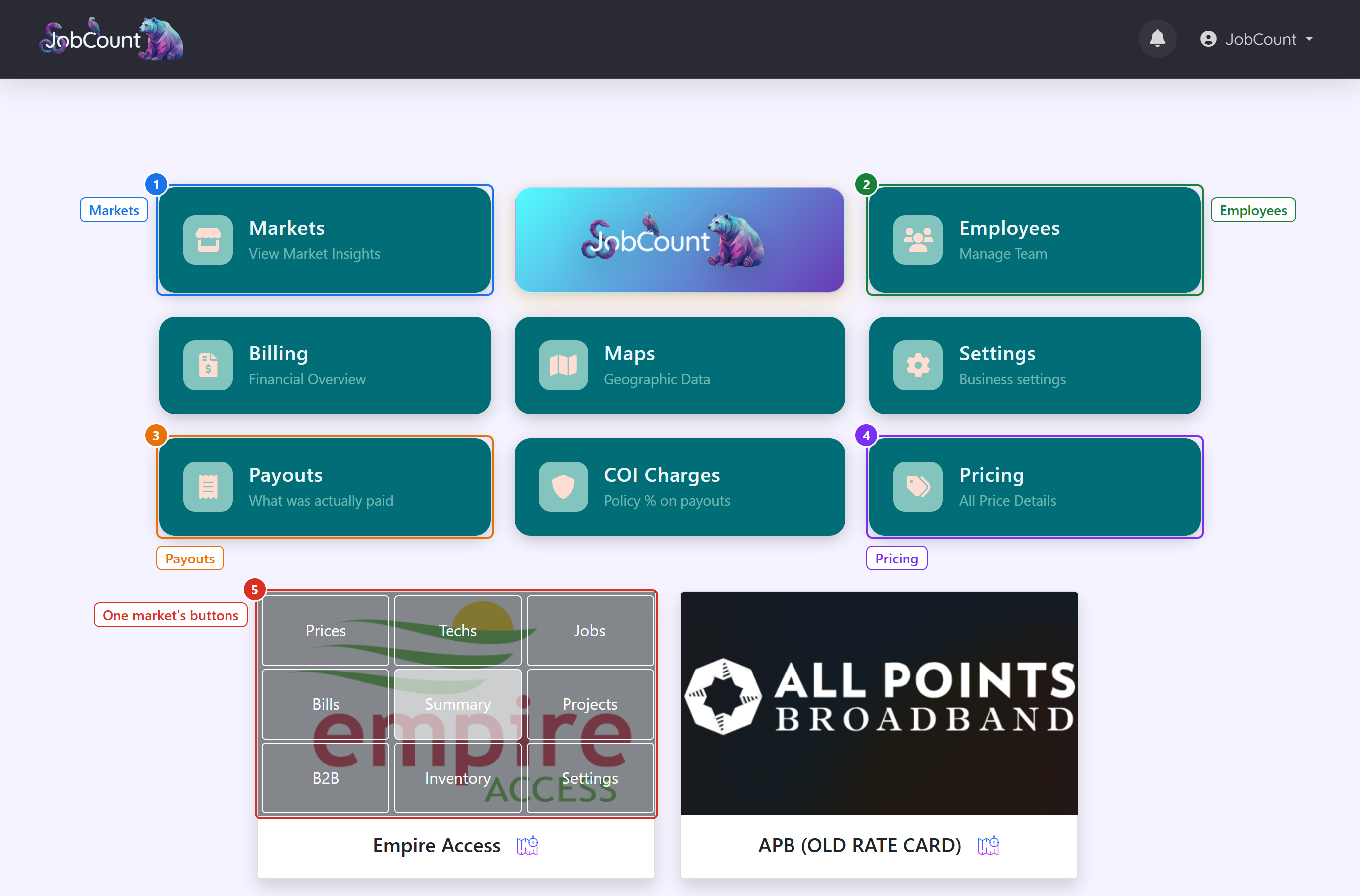
When you sign in as a manager you land on your home page. Everything starts here.
1.1 Your manager home page
The big tiles at the top are for your whole business. The row of buttons on each market card is for that one market. You will use the market buttons far more often.
2. Set up your price list
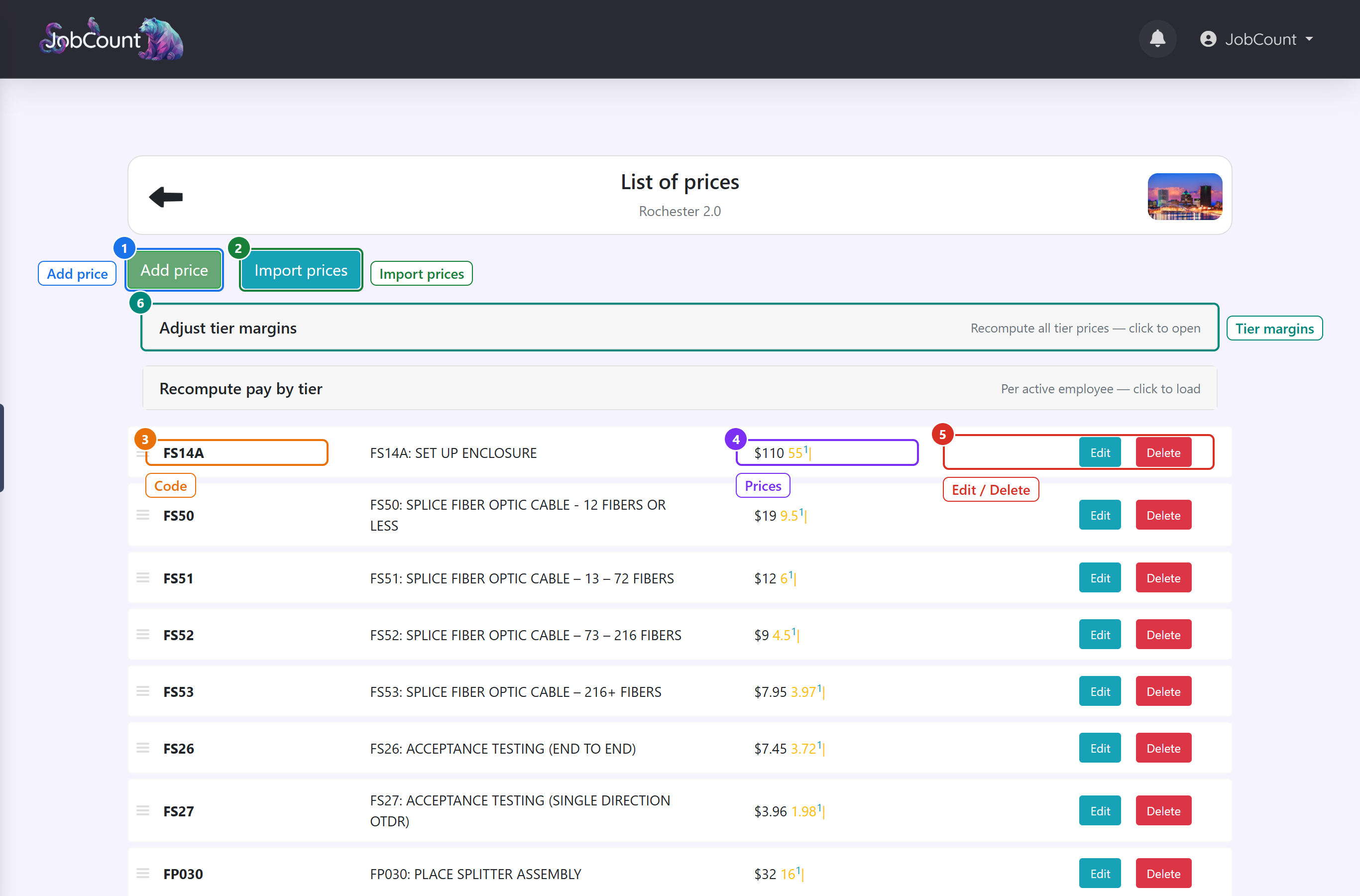
A price is a production code: a short code, a description and what the client pays for one of it. Techs pick these codes when they add a job, so set them up first.
2.1 The Prices page of a market
Open a market card and click Prices. Each row is one code. Add them one by one, or import a whole list.
3. Bring your crew in
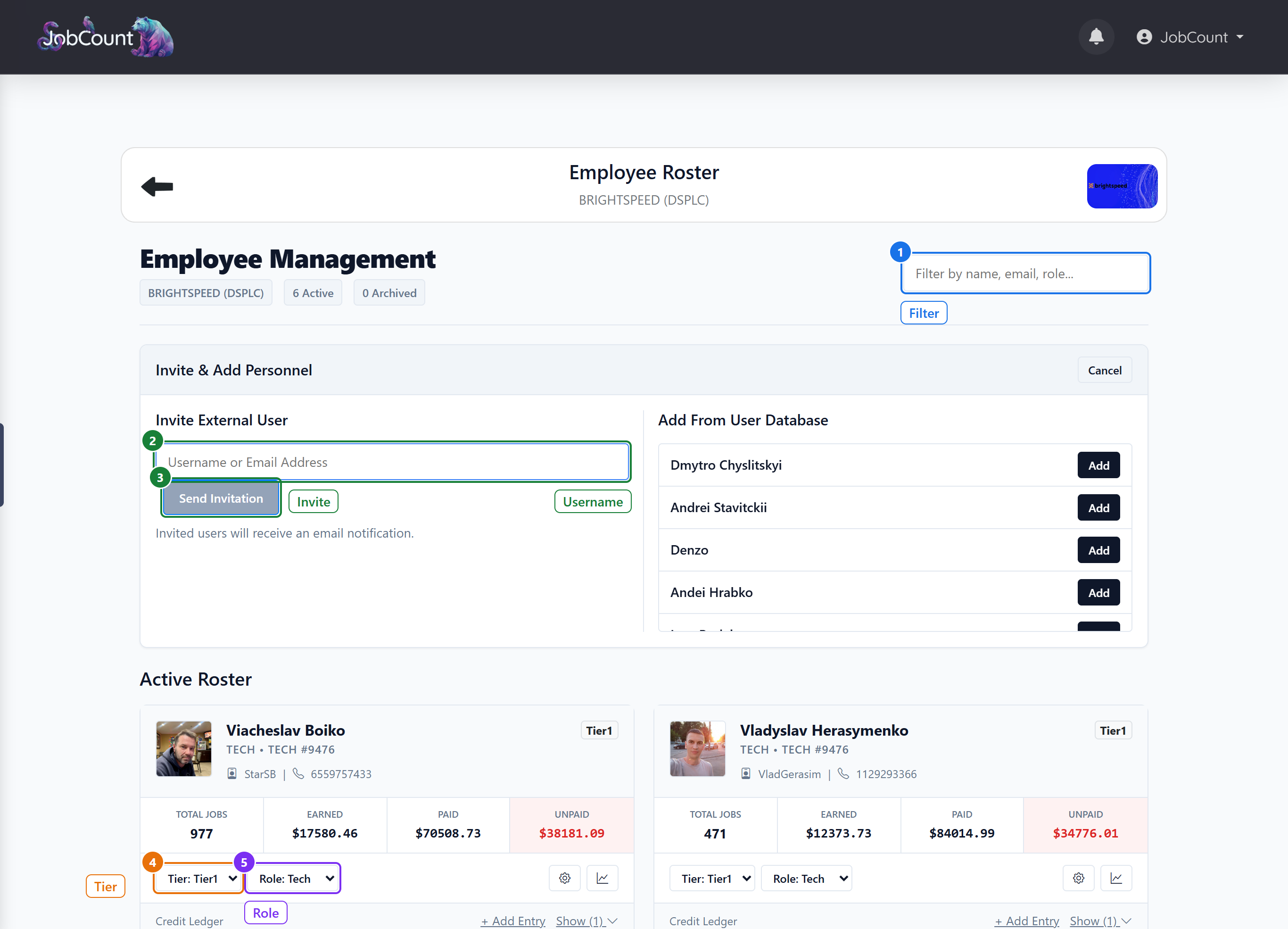
Techs join a market by invitation. Every tech needs a jobcount account first; ask them to sign up, then invite their username.
3.1 The Techs page
Invite people here, then set each person's tier and role on their card. The tech accepts the invite from the bell icon at the top of their own screen.
4. Create a project
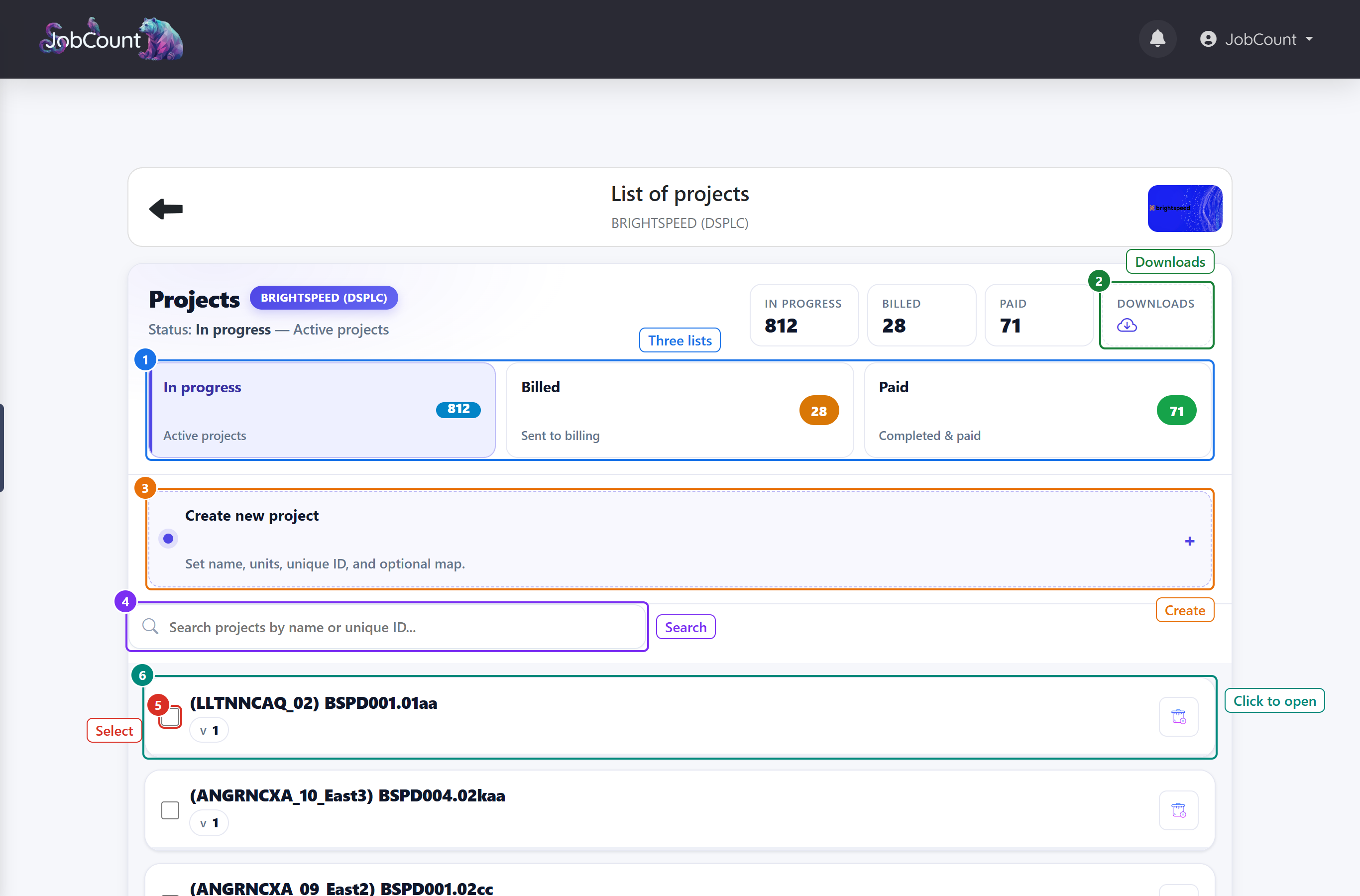
A project is a piece of work the client will pay for as one unit — a cable run, a splice enclosure, a street. Techs add their jobs to a project, and the Production Report is made per project.
4.1 The Projects page
Every project lives in one of three lists: In progress, Billed or Paid. Create new ones at the top, find old ones with the search box.
5. Add a job (what your techs see)
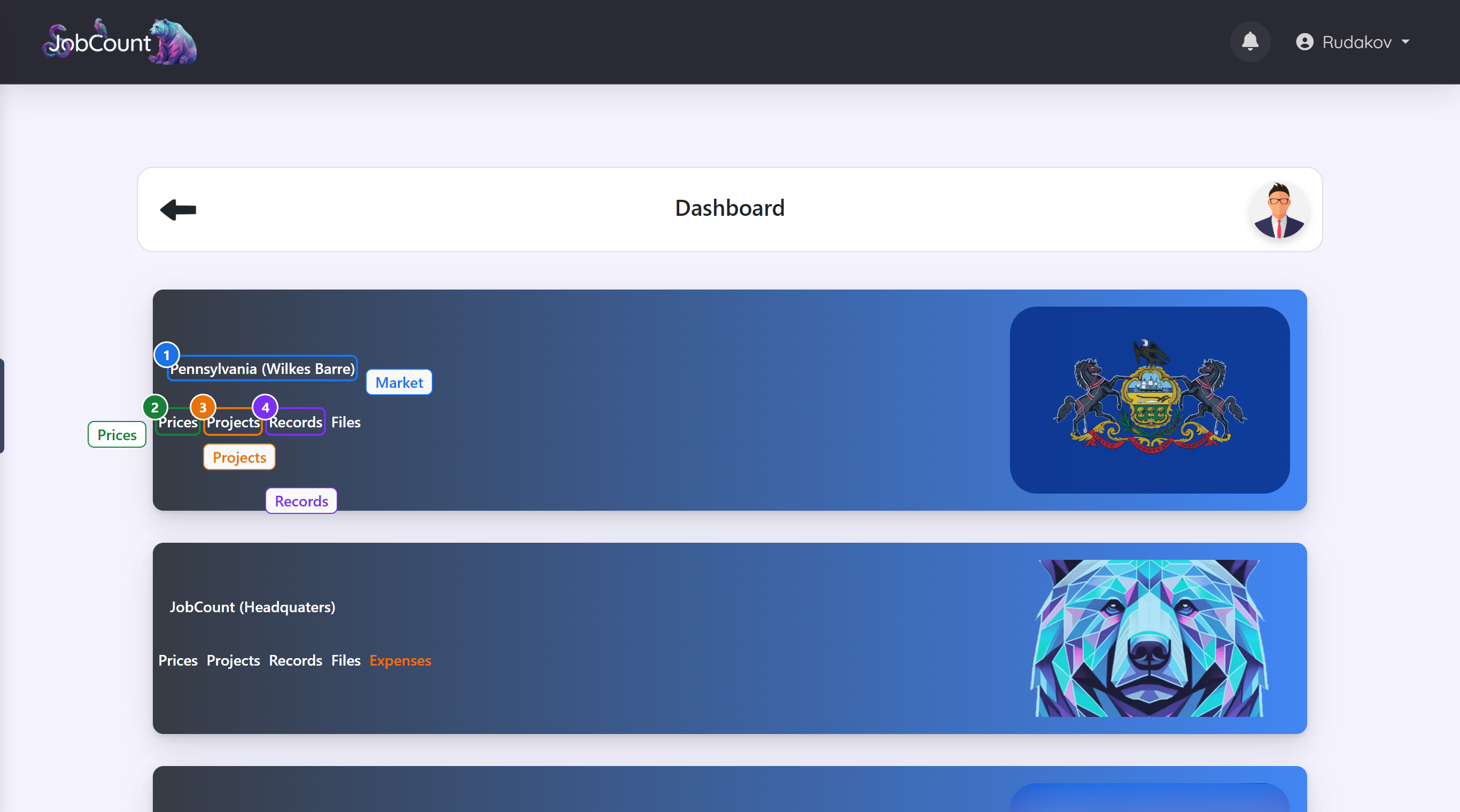
A job is one visit, one address, one set of codes. Techs add jobs from their phone or laptop. Here is exactly what they see, so you can help them.
5.1 The tech's home page
A tech sees a card for every market they were invited into. The links on the card open that market.
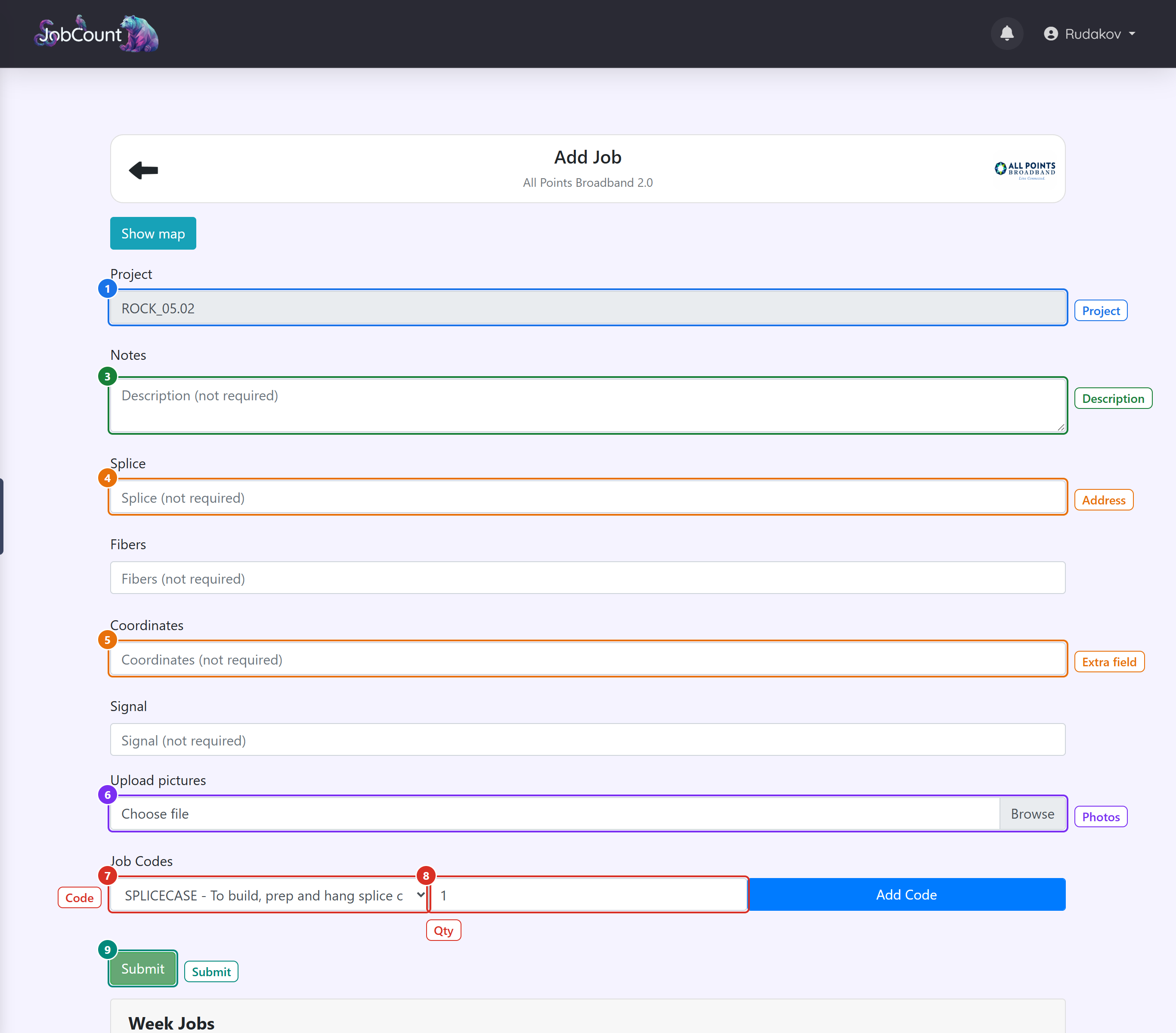
5.2 The Add Job form
Fill the form top to bottom, add at least one code, and press Submit. Only the codes are required. Photos are strongly encouraged: they end up in the Production Report.
6. Review the jobs
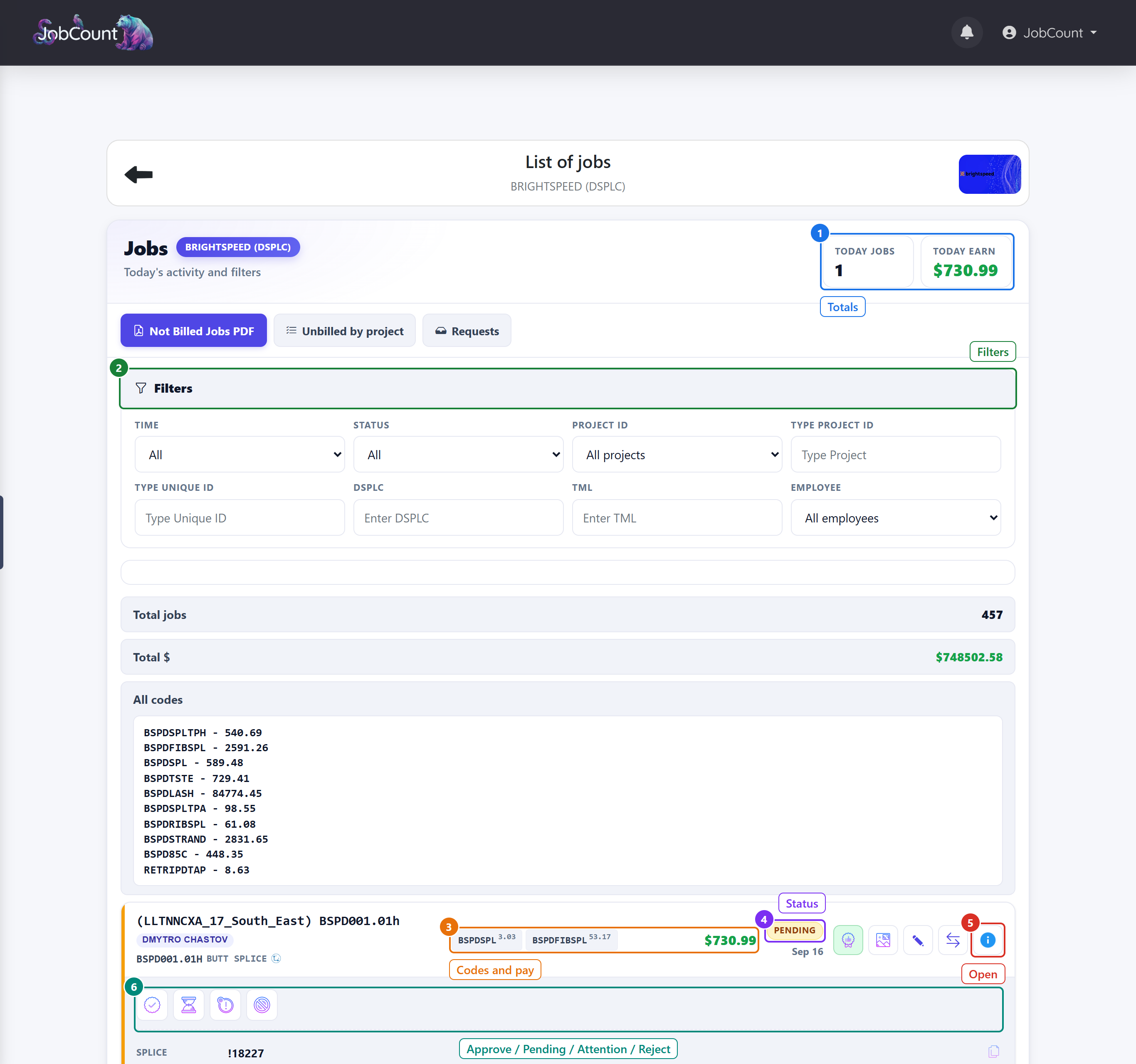
Every job a tech adds starts as Pending. You decide what happens next. Only Approved jobs count as pay for the tech.
6.1 The Jobs page with one job opened
The page shows today's jobs by default. Change Time to All to see everything. Click the little info icon on a job to open its drawer, where the four status buttons live.
7. Move a project along
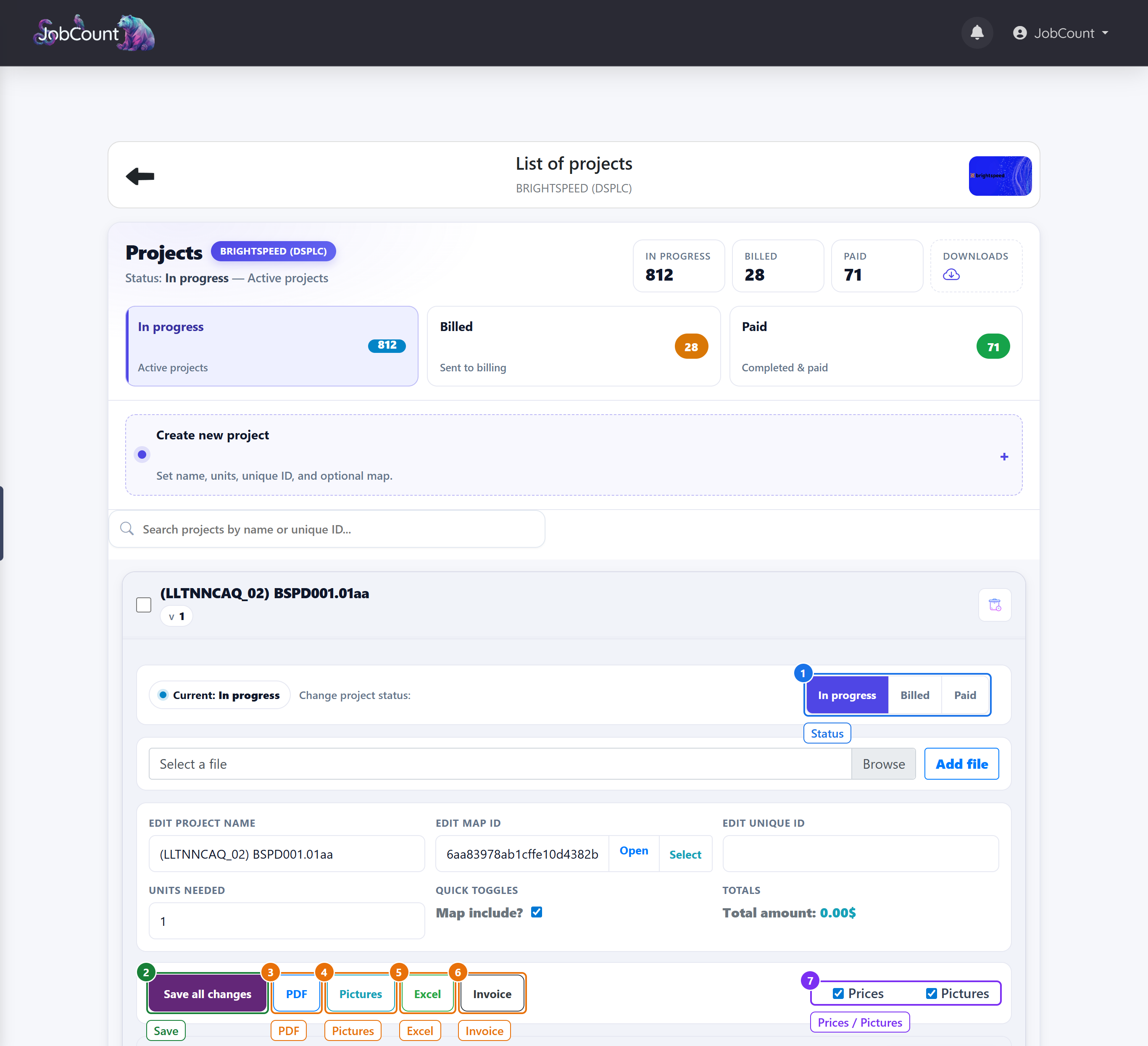
When the work is done you bill the client, and when they pay you close the project. Both are one click on the project card.
7.1 An opened project card
Click a project's name to open it. Moving a project to Paid does three things at once. It marks its jobs as billed. It locks the weeks so nobody can edit them. And it freezes the total at the client's prices.
8. Check the money
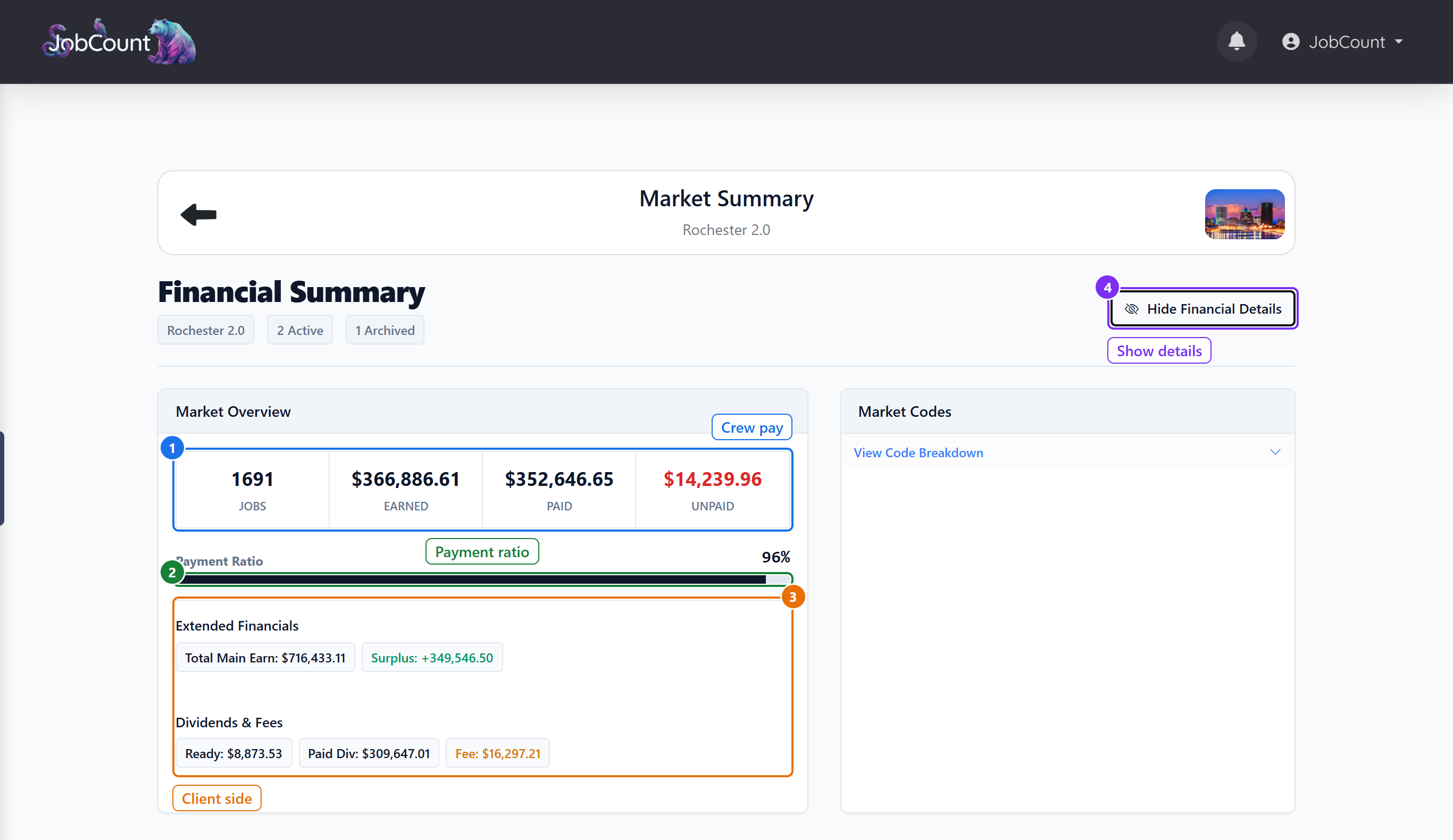
The Summary page answers the three questions every manager asks: how much did the crew earn, how much of that is paid, and what did the client owe?
8.1 The Market Summary page
The four boxes are about crew pay. Click Show Financial Details to see the client side and the difference between the two.
3Where do I get my report?
The Production Report is a PDF for one project. It lists every job, every code with its quantity, the money at the client's prices, and a page for every photo the crew took. It is what you send the client to get paid.
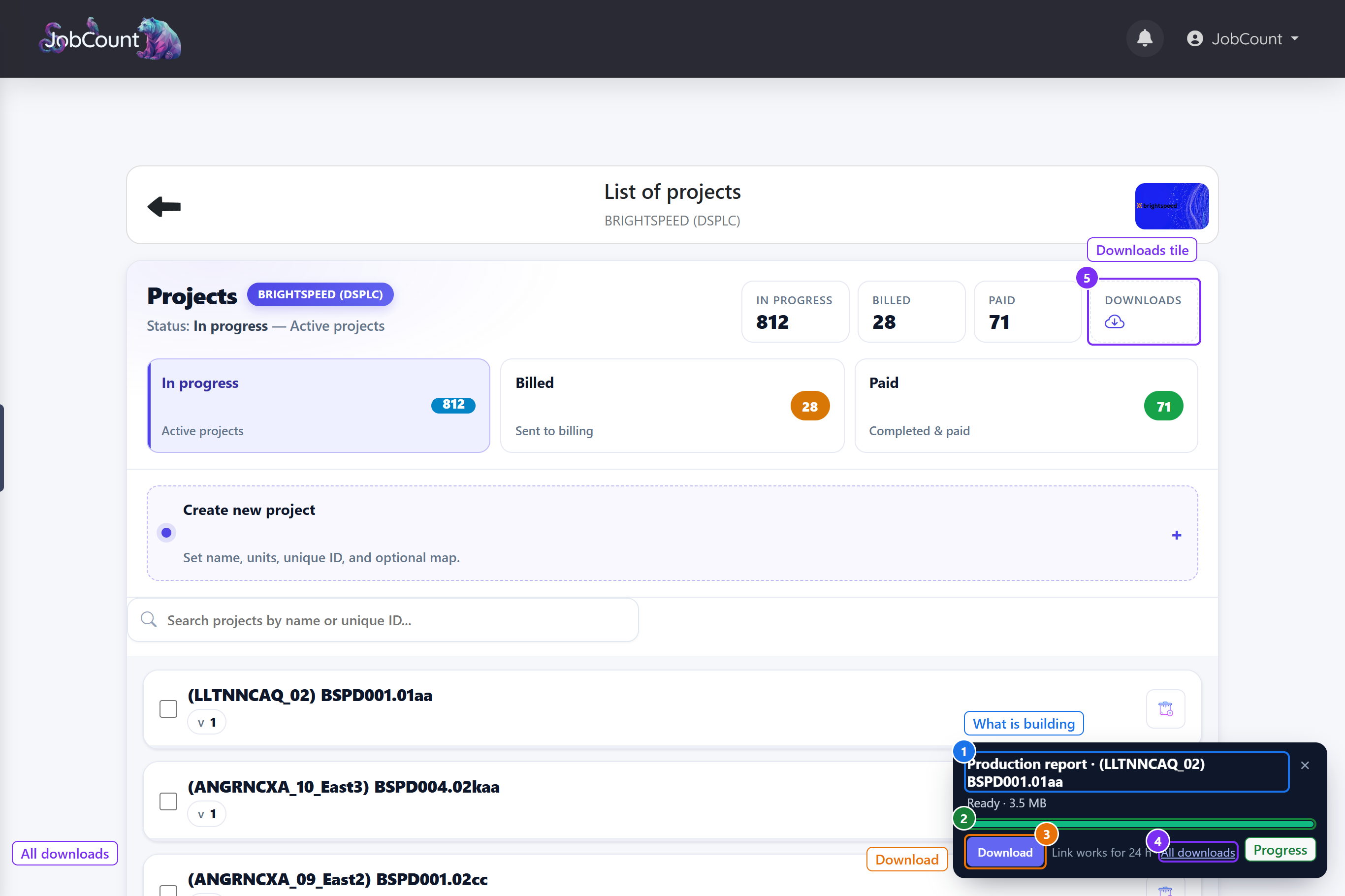
You make it from the Projects page. It takes a moment to build, so it runs in the background and a small card in the corner tells you when it is ready.
Production Report - <project name> - <unique ID>.pdf
Production Reports - <market name> - <today's date>.zip
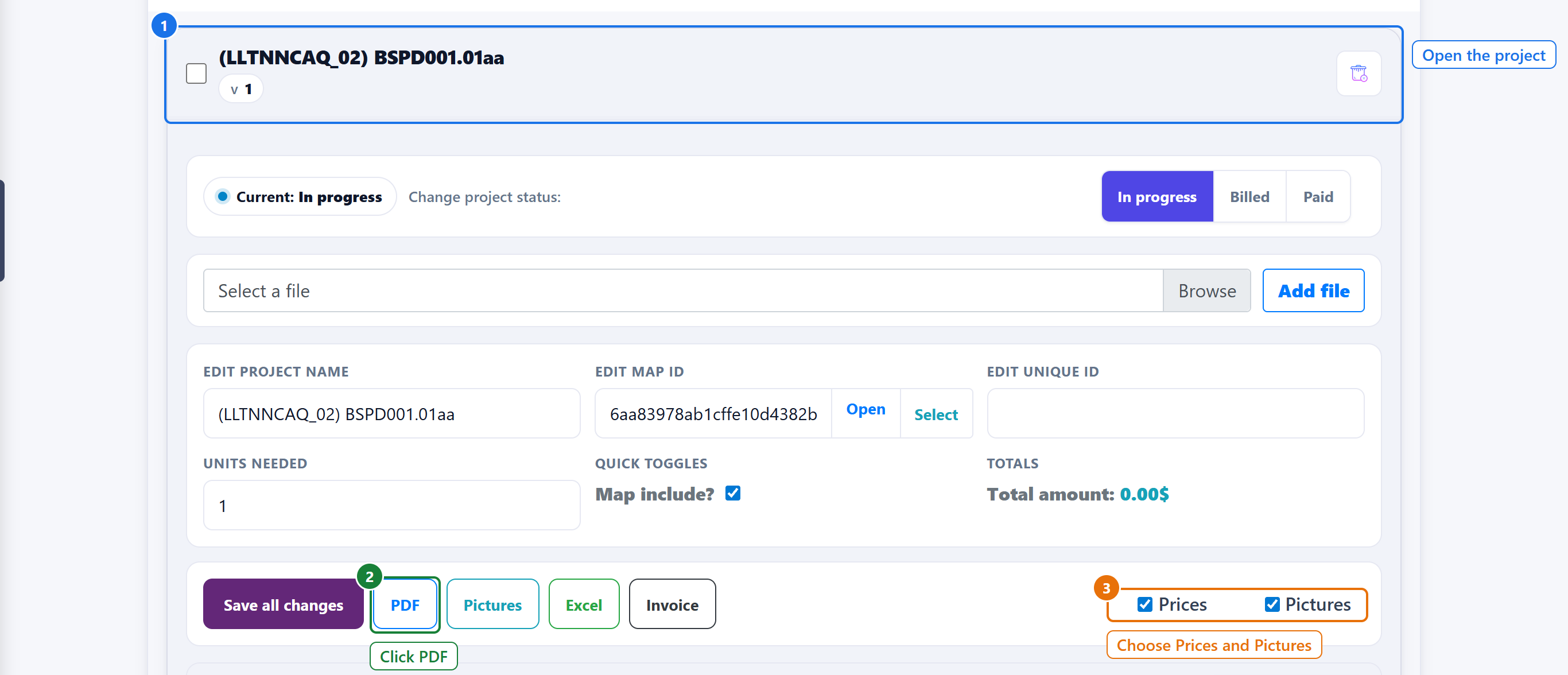
1 Make the report for one project
Open the project card. The PDF button is in the row under the totals. The two checkboxes on the right decide whether prices and photos go into the file.
2 Wait for the card, then download
As soon as you click PDF, a card appears in the bottom corner. You can keep working. When it says Ready the file downloads by itself, and the Download link stays good for 24 hours. The Downloads tile at the top of the page lists everything you asked for in the last day.
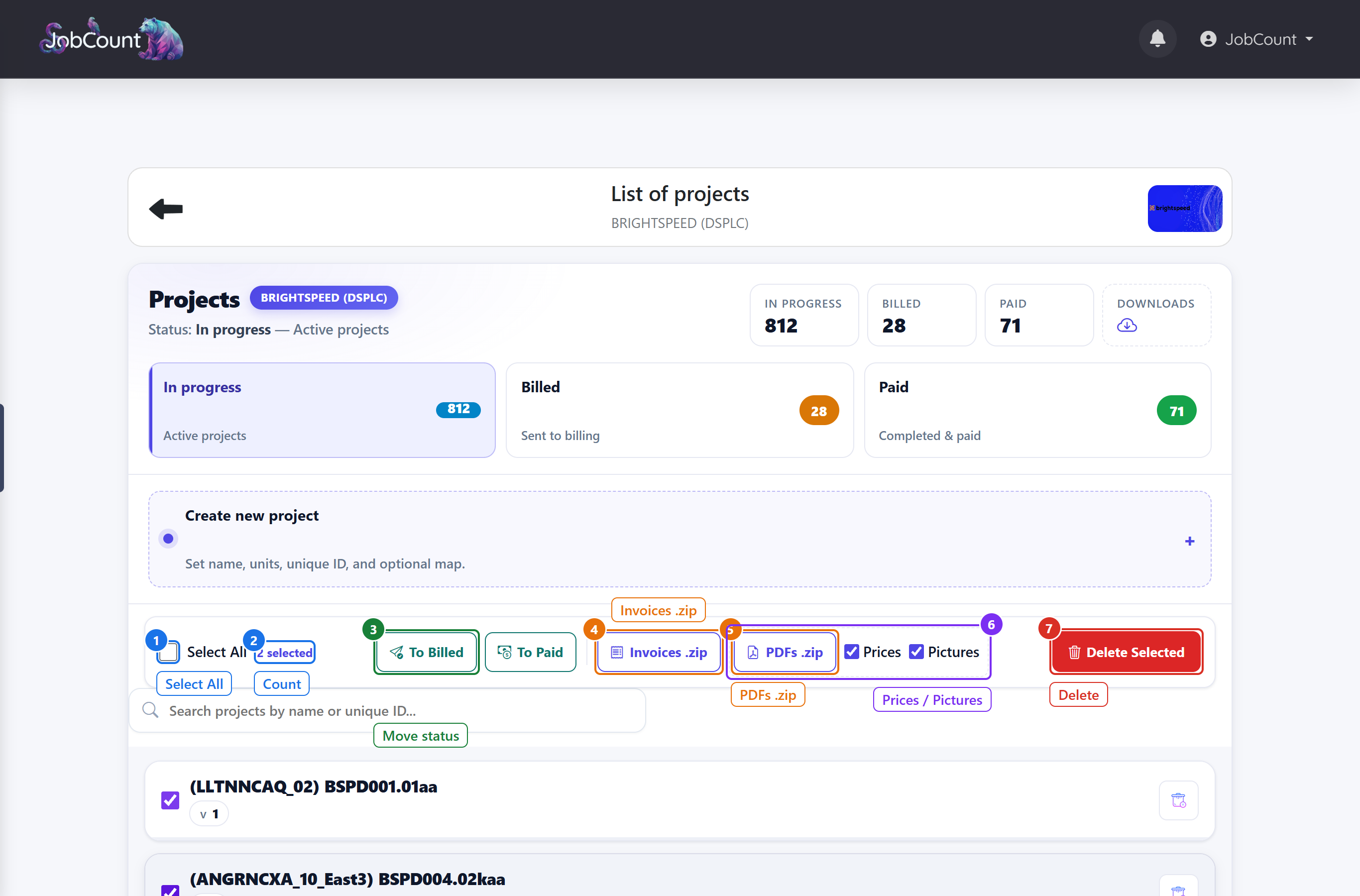
3 Make many reports at once
Tick the box next to two or more projects and a bar appears. PDFs .zip builds one report per project and gives you a single .zip file named after the market and today's date.
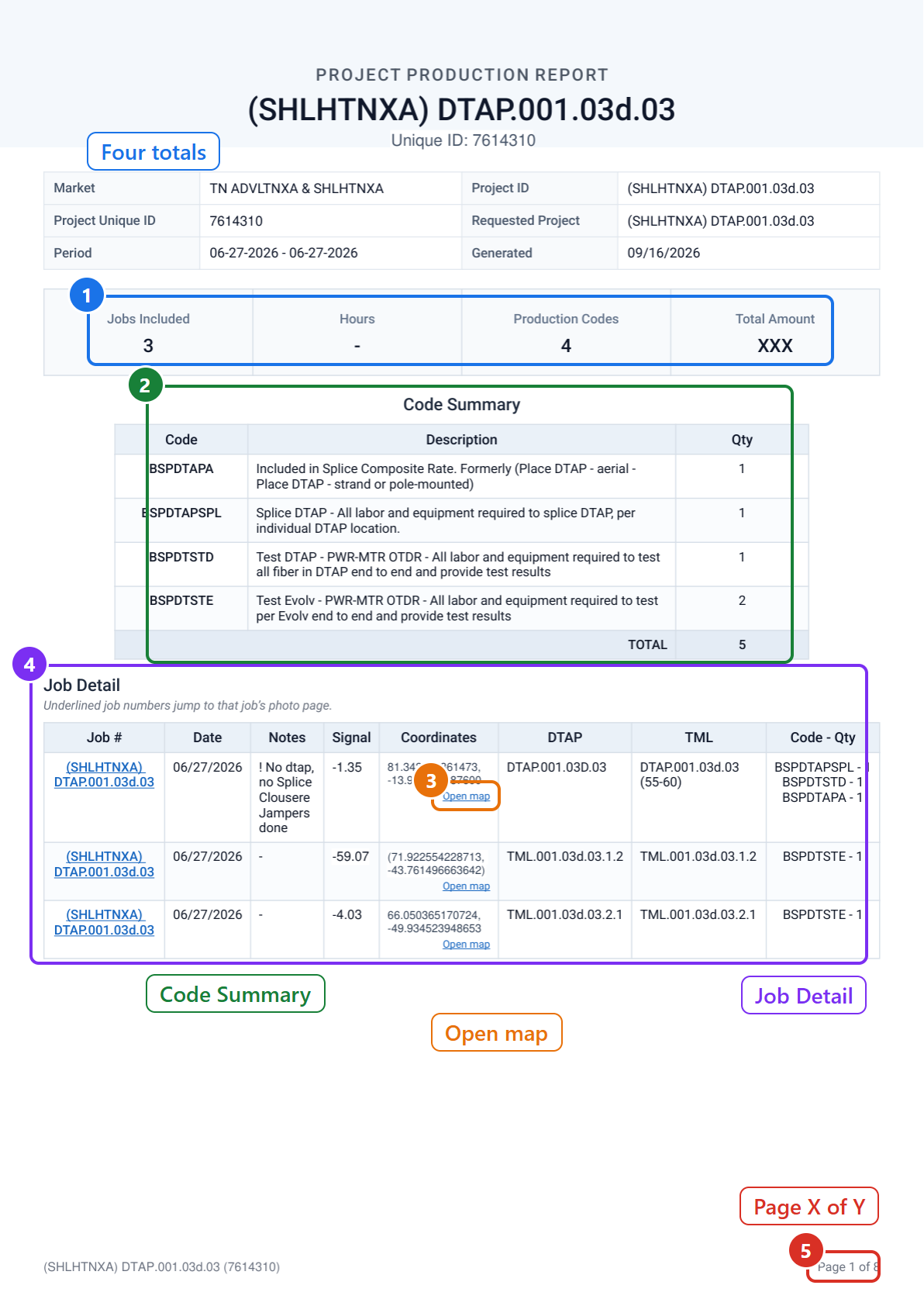
4 Reading page 1: the job list
Open the PDF in any viewer. Page 1 is the summary. Blue underlined text is a link — click it instead of scrolling.
5 Moving around inside the PDF
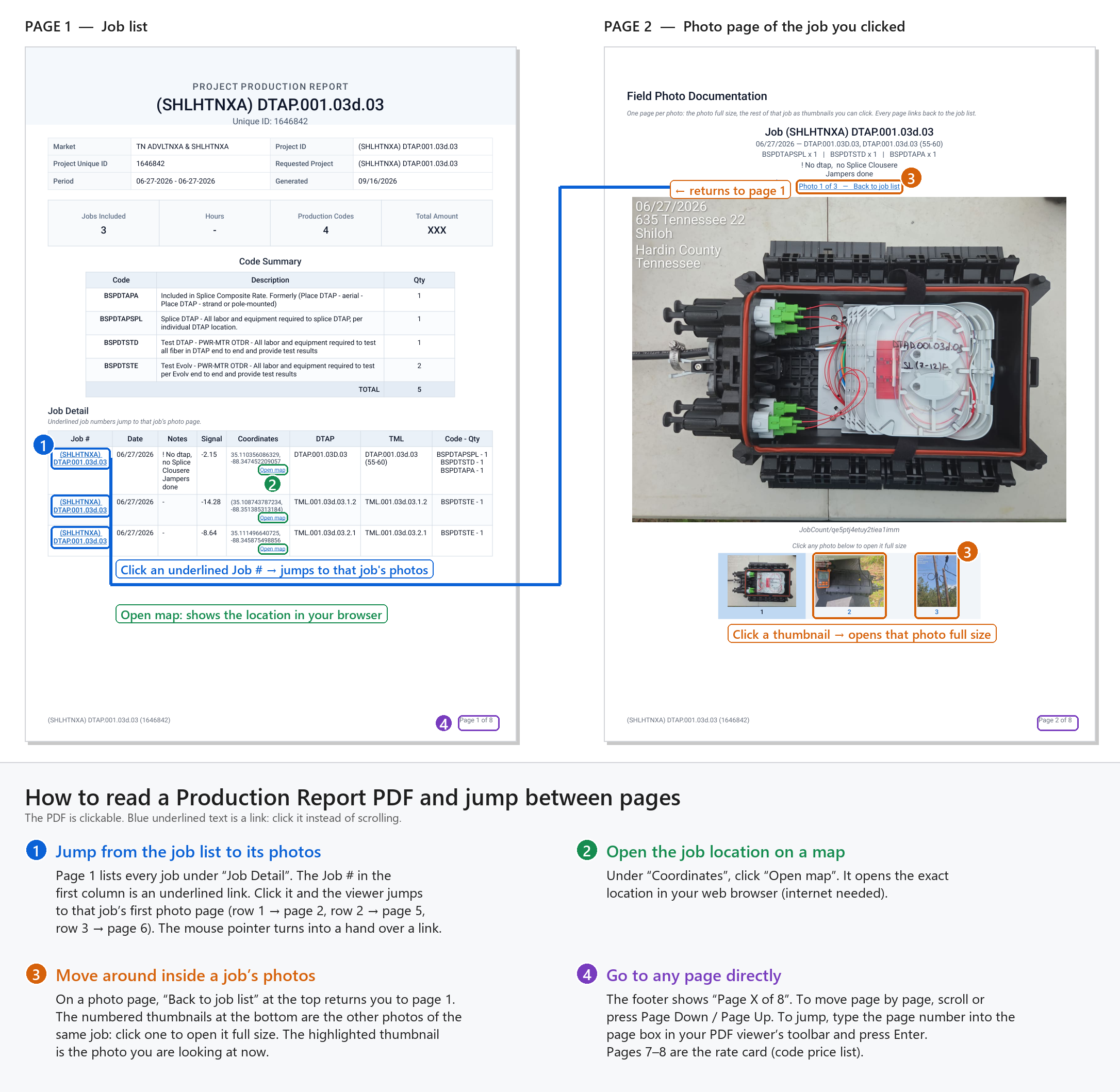
After the job list comes one page per photo. The PDF is clickable: blue underlined text is a link, so click it instead of scrolling. This picture shows page 1 and the photo page it links to, side by side.
6 The rate card at the end
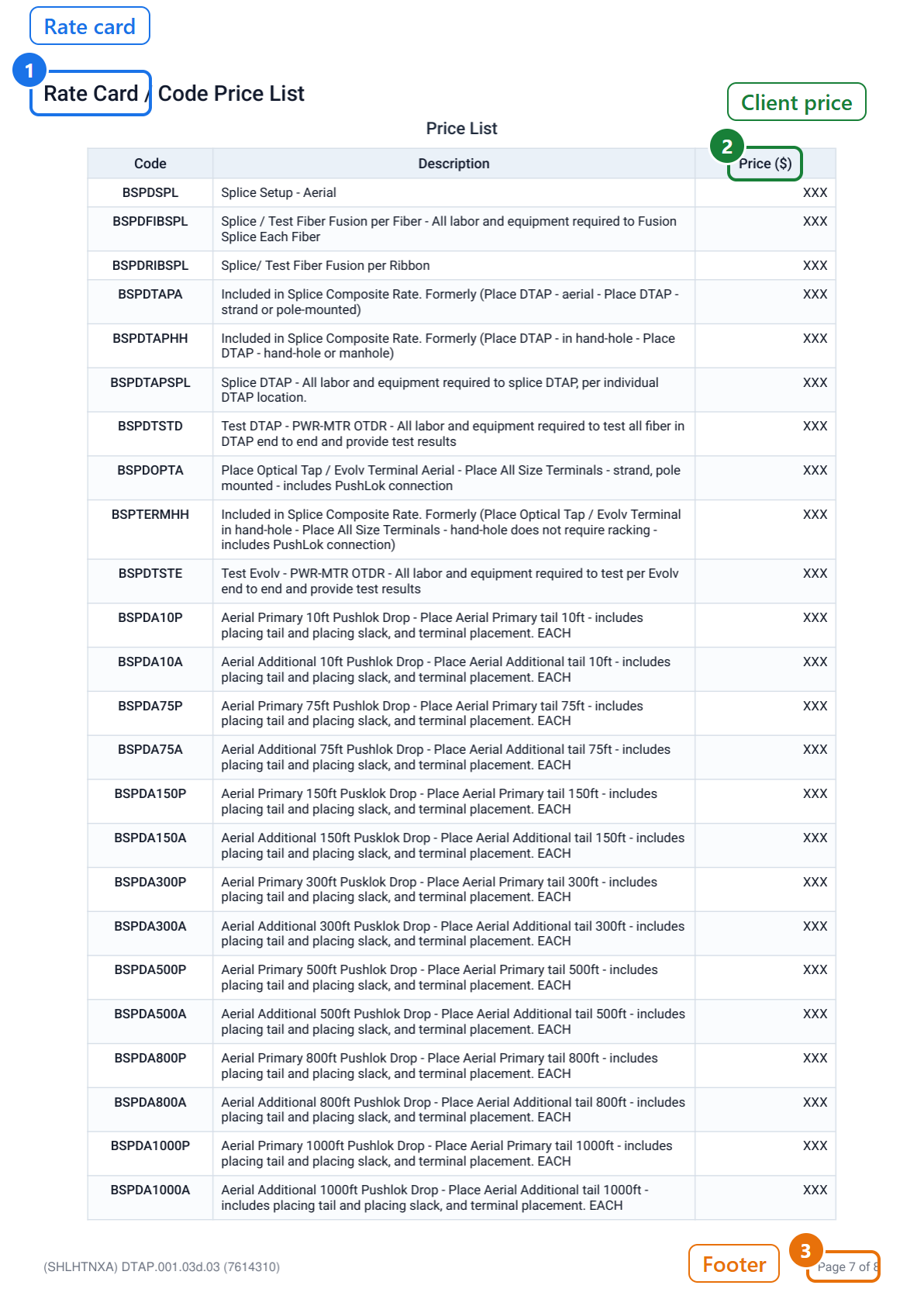
The last pages print the market's price list, so the client can check every amount against a rate.
4What do the numbers mean?
Every figure you will meet, in the order you meet it. Each entry says what it measures, shows an example, and tells you when to look twice.
One rule explains most of this page: the client pays the price on the market's price list, and the tech is paid the price in their tier column. Those are two different numbers on purpose.
Prices page
Measures The short name of one unit of production, for example BSPDTSTE. Techs pick it from a list when they add a job.
Example A code of BSPDTAPSPL with the description "Splice DTAP" means one spliced DTAP enclosure.
Watch for A code with a small * after it is paid by the hour, not per unit.
Measures What the client pays for one of this code. This is the number the Production Report and the Invoice use.
Example If Price says $125, one completed unit adds 125 to the client's total.
Watch for Techs are not paid this number. See Tier.
Measures What a tech in that tier is paid for one of this code. The tier is set per tech on the Techs page.
Example If a row shows 125 and then 80¹ 90², a tier 1 tech earns 80 and a tier 2 tech earns 90 for a job the client pays 125 for.
Watch for A tech whose tier is None earns the None column, which is usually 0. If a tech says their pay is zero, check their tier first.
Measures The hourly rate used once a tech passes 40 hours in a week, on hourly codes only.
Example If overtime shows $45, hours beyond 40 pay 45 each instead of the normal rate.
Watch for Only markets that record Time In and Time Out use this.
Measures The plain average of every Price on the list. Shown inside Adjust tier margins to preview what a tier slider will do.
Example Ten codes that add up to 1250 show an average base price of 125.
Watch for It is a preview only. Nothing changes until you apply the margins.
Techs page
Measures Which pay column a tech's jobs are priced at: None, tier1, tier2, tier3, tier4 or tier5.
Example Move a tech from tier2 to tier3 and every new job they add is paid at the tier 3 price.
Watch for Changing a tier does not re-price old jobs by itself. Use Recompute pay by tier on the Prices page for that, and it only touches weeks that are not paid yet.
Measures Tech, Supervisor or Dispatch. Supervisor unlocks the Team, Operations and Jobs pages for that person. Dispatch is a label only.
Example Set a lead tech to Supervisor and add three people to their team; they can now see those three people's jobs.
Watch for Role is about what they can see. Tier is about what they are paid. They are independent.
Measures Active is your current crew. Archived is people you removed. Removed people keep read access to their own history.
Example 2 Active, 1 Archived means two people can add jobs today.
Watch for Archiving does not delete anything.
Add Job form
Measures Which project the job belongs to. On project markets it is filled in for you and cannot be changed.
Example A job added inside the project (SHLHTNXA) DTAP.001.03d.03 shows that name here.
Watch for If the project you expect is missing, the manager has not added you to it yet.
Measures Only on markets that track time. The difference becomes the job's hours, rounded to two decimals, and rolls up into the week.
Example In 07:30, Out 16:15 gives 8.75 hours.
Watch for Past midnight is handled: In 22:00, Out 02:00 gives 4 hours, not 20.
Measures A latitude and longitude, written as "lat, lng". It is filled in automatically when a job is claimed from a map pin.
Example 35.110356, -88.347452 becomes an Open map link in the Production Report.
Watch for Type it by hand only if you must, and keep the comma.
Measures How many of the chosen code you completed on this job. Whole numbers, at least 1.
Example Choose BSPDTSTE, set Qty to 2, press Add Code: the job now carries BSPDTSTE - 2.
Watch for You can add the same code twice by mistake. Check the list before you press Submit.
Jobs page
Measures How many jobs were added today, and what the crew earned for them at their tier prices.
Example Today Jobs 7 and Today Earn $560 means seven jobs today worth 560 in tech pay.
Watch for Change the Time filter to All and the two boxes change to Total jobs and Total $ for the whole market.
Measures Each chip is one code on the job. The small number is the quantity.
Example BSPDTSTE with a small 2.00 means two units of that code.
Watch for On a SPLIT job the quantity shown is the whole job, even though each person is paid their share.
Measures What the tech earns for this job: each code's tier price times its quantity, added up.
Example $180.00 on a job with two codes at 90 each.
Watch for This is tech pay, not what the client is charged.
Measures Where the job is in your review. Pending is new. Approved counts as pay. Attention means look again. Rejected does not count.
Example A week with three Approved jobs and one Rejected pays the tech for three.
Watch for Only Approved money is paid. Pending, Attention and Rejected each have their own total on the week, so nothing is lost, it just is not payable yet.
Measures One job shared by several techs. Each person gets their own copy and their own share of the pay.
Example A three-way split of a 300 job pays 100 to each person.
Watch for Approving or rejecting a split job moves every copy together.
Projects page
Measures How many projects are in each list. In progress is being worked. Billed was sent to the client. Paid is closed.
Example 12 in progress, 3 billed, 40 paid.
Watch for Moving a project to Paid locks its weeks. Move it back to In progress if a tech still needs to add something.
Measures Jobs done divided by the project's Units, as a percentage, capped at 100. A split job counts as one job, not one per person.
Example A project with Units 20 and 15 jobs shows Progress 75%.
Watch for If you never set Units, Progress stays empty.
Measures v is the project's version number, starting at 1. ID is the client's unique reference for the project, which also ends up in the report's file name.
Example v1 and ID 2048117.
Watch for Give every project a unique ID. Without one, the report is named after the job dates instead.
Measures The project's value at the client's prices: for every job, each code's Price on the price list times its quantity.
Example Total amount 2450.00$ on a project whose codes add up to 2450 at list price.
Watch for It is recalculated every time you make a Production Report, and frozen when the project goes to Paid.
Measures On markets with automatic weeks, how many of the project's jobs have already been put on a report.
Example Billed: 12 means twelve jobs were on an earlier report.
Watch for On those markets, making a report marks the jobs on it as billed. Tick Include billed jobs if you need them on the next report too.
Summary page
Measures Every job on every week in the market, all techs together.
Example Jobs 1,284.
Watch for It counts jobs, not units of production.
Measures What the crew earned in total, at their tier prices, from Approved jobs.
Example Earned $42,300.00.
Watch for Pending and Rejected jobs are not in here.
Measures How much of Earned has been paid out to techs, and how much is still owed. Paid plus Unpaid always equals Earned.
Example Earned $42,300 with Paid $40,000 leaves Unpaid $2,300, shown in red.
Watch for Unpaid in red is your to-do list for payroll.
Measures Paid divided by Earned, as a percentage.
Example Paid $40,000 of $42,300 earned is a Payment Ratio of 95%.
Watch for 100% means everyone is paid up.
Measures What the client owes for all that work, at the price list. It is the client side of the same jobs.
Example Total Main Earn $58,000.
Watch for If a code is missing from the price list its jobs cannot be valued, and the code appears under Missing Code Pricing.
Measures Total Main Earn minus Earned: what is left after the crew is paid.
Example Client $58,000 minus crew $42,300 is a Surplus of +15,700.
Watch for A negative surplus in red means the tier prices are higher than the client prices. Check the price list.
Measures Only if the market has shareholders. Ready is dividend money waiting to be paid, Paid Div is what was paid, and Fee is the maintenance fee taken off the top.
Example Ready $1,200, Paid Div $9,800, Fee $500.
Watch for Only closed, paid weeks feed these numbers.
Production Report PDF — page 1
Measures The market's name, the project's name, and the client's reference for it.
Example Market TN ADVLTNXA & SHLHTNXA, Project ID (SHLHTNXA) DTAP.001.03d.03, Unique ID 2048117.
Watch for Requested Project simply repeats the project you clicked, so you can check you got the right file.
Measures The earliest and latest job date on this report, as MM-DD-YYYY - MM-DD-YYYY.
Example 06-27-2026 - 06-27-2026 means every job on the report happened on the same day.
Watch for It comes from the jobs, not from the week, so it changes if you include billed jobs.
Measures The day the PDF was made, as MM/DD/YYYY.
Example 09/16/2026.
Watch for Make a fresh one after any change to the jobs.
Measures How many jobs are on the report. A split job counts once.
Example 3.
Watch for On automatic-week markets it excludes already-billed jobs unless you ticked Include billed jobs.
Measures The Time In / Time Out hours recorded on the first week of the project. A dash means none were recorded.
Example 12.5, or - when the market does not track time.
Watch for It reads one week only. On a project that spans several weeks it under-reports, so do not bill hours from this tile.
Measures How many different codes appear on the report. It is a count of kinds, not of units.
Example 4, when the jobs used BSPDTAPA, BSPDTAPSPL, BSPDTSTD and BSPDTSTE.
Watch for For the units, look at the TOTAL row of the Code Summary.
Measures The client's total: every code's list Price times its quantity, across all jobs. Written with the dollar sign after the number and no thousands separator.
Example 2450.5$
Watch for It shows XXX when you unticked Prices. A code that is not on the price list falls back to the tech's own price, silently. Keep the price list complete.
Measures One row per code. Qty is the units across all jobs. Unit Price is the list price. Total is Qty times Unit Price. The TOTAL row adds up Qty and Total.
Example BSPDTSTE, Qty 2, Unit Price 125, Total 250.
Watch for A split job's quantity is counted once for the whole job, not once per person.
Measures One row per job. Job # is underlined when the job has photos: click it to jump there. Coordinates has an Open map link. Code - Qty lists each code and its units. Amount is that job at list prices.
Example BSPDTSTE - 1 under Code - Qty, and 125 under Amount.
Watch for Column names follow the market's own field names, so Description may be called something else on your market.
Measures Where you are in the file. The left side of the footer repeats the project name and unique ID.
Example Page 1 of 8.
Watch for Type a page number into your PDF viewer's page box to jump straight there.
Production Report PDF — photo and rate card pages
Measures Which photo of this job you are looking at, and how many the job has.
Example Photo 1 of 3.
Watch for The highlighted thumbnail at the bottom is the photo you are on. Click another to open it full size.
Measures Each code on that job and how many, separated by bars.
Example BSPDTAPSPL x 1 | BSPDTSTD x 1 | BSPDTAPA x 1.
Watch for It matches the Code - Qty column on page 1.
Measures On automatic-week markets, a second section with the jobs that were already on an earlier report: Billed Jobs, Codes, Production and Amount.
Example Billed Jobs 12, Amount 1500$.
Watch for It only appears when you ticked Include billed jobs.
Measures The market's whole price list at the moment the report was made. Price is the client price.
Example BSPDTSTE, Test Evolv, 125.
Watch for Tier prices are never printed. The client never sees tech pay.